
Plugable 13-in-1 Triple Monitor Dock
4.4Editor score
DisplayLink Mac expansion
100W host power delivery
Business deployment ready
Lifetime technical support
Explore the best docking station for 3 monitors, comparing display support, power delivery, connectivity, compatibility, and setup needs.
A docking station for 3 monitors can transform a compatible laptop into a roomy, professional workstation with one cable. The strongest models combine extended displays, dependable power delivery, fast peripherals, networking, and a practical port selection, while avoiding unnecessary setup complexity.
We compared all ten options by examining supported display combinations, maximum resolutions, host charging, USB networking, card readers, operating-system restrictions, included accessories, and the extra hardware or drivers each design requires. The list covers native, MST, and DisplayLink approaches across different workstation needs.
Each pick reveals a distinct route to a three-screen desk: budget-friendly HDMI hubs, native Windows solutions, Mac-friendly DisplayLink models, and feature-rich premium stations. Product details and availability can change, so confirm your laptop ports, display requirements, and current specifications before purchasing.
4.4Editor score

4.5Editor score

4.3Editor score
The table below compares the ten shortlisted docks by display architecture, charging capacity, peripheral connectivity, and the most important compatibility consideration for each design.


The Selore 17-in-1 Triple Display Dock combines five display outputs, fast USB connectivity, wired networking, memory-card access, host charging, and an informative LCD. Its 4.3 rating reflects a broad feature set for Windows users, particularly those balancing several high-resolution panels with accessories such as a keyboard, mouse, storage drive, camera, or network connection.
We may earn a commission when you buy through this link, at no additional cost to you.
Its most compelling advantage is the choice of three HDMI and two DisplayPort connections. Supported Windows configurations can place one panel at 4K 60Hz and a second at 4K 60Hz, while the third runs at 4K 30Hz. The dock also includes 10Gbps USB-A and USB-C connections, Gigabit Ethernet, SD and microSD 3.0 slots, and 100W input with approximately 85W pass-through charging. A 104MB/s card reader is useful for photographers, while the weather, time, date, and charging display adds genuine desk utility.
There are important constraints. Three independent extended displays are limited to Windows laptops with suitable MST and DisplayPort Alternate Mode support, and macOS is restricted to mirrored external output. The dock accepts up to 100W input but the listed power adapter is not included, so a sufficiently capable USB-C charger is an additional consideration. The third display also operates at 30Hz rather than the 60Hz used by the first two, which may matter for motion-heavy work.
This is an appealing choice for a Windows power user who wants more display-output flexibility than a simple three-HDMI hub. It suits analysts, editors, developers, and traders who value fast USB, a wired network, card reading, and one-cable charging. Confirm your laptop supports the required video mode and provide an appropriate power supply before setup.
With three HDMI and two DisplayPort ports, you can choose a practical combination rather than being limited to a fixed panel layout. The three documented Windows combinations support a mix of high-resolution and standard refresh rates, allowing you to prioritize a sharp primary screen while adding useful secondary workspaces.
The LCD, privacy button, 10Gbps USB connections, Gigabit Ethernet, and memory-card slots turn the dock into a complete workstation hub. These extras are particularly valuable for users who want to connect several peripheral classes without building a complicated adapter chain.
We may earn a commission when you buy through this link, at no additional cost to you.
The TobenONE 18-in-1 Triple Monitor Dock is built for users who need a large collection of peripheral connections in addition to three displays. It carries a 4.3 rating and provides three HDMI outputs, nine USB connections, Gigabit Ethernet, SD and microSD slots, audio, and 100W host charging. That concentration of ports makes it a natural fit for an office desk shared by several device categories.
We may earn a commission when you buy through this link, at no additional cost to you.
The three-display configuration supports 4K 60Hz output according to the supplied information, making the station relevant to spreadsheet work, video editing, conferencing, and general multitasking. Its nine USB ports reduce the need for secondary hubs when the desk includes a keyboard, mouse, printer, web camera, flash storage, and external drives. Gigabit Ethernet offers a dependable wired alternative to Wi-Fi, while the card reader can speed up media workflows.
Compatibility is the main qualification. The product is customized for Windows and Chrome OS laptops with full-featured USB-C connections, and the supplied description explicitly states that it is not recommended for Mac users. A power adapter is also not included, and a 68W or greater charger is recommended to support the full feature set. Native display support ultimately depends on the graphics capabilities of the connected laptop.
Choose this dock when three monitors are only one part of a broader requirement and you want a single central connection point for numerous USB peripherals. It is especially practical for Windows-based professional desks, shared offices, and productivity systems where port availability matters nearly as much as screen space.
Nine USB connections are uncommon in a compact dock and create room for several input, storage, and conferencing accessories at once. This reduces the need to swap hubs or reconnect devices whenever the primary laptop changes.
The operating-system limitation keeps the intended environment clear. Windows and Chrome OS users with video-capable USB-C ports can focus on the dock's display and peripheral capabilities, while Mac owners should choose a DisplayLink model instead.
We may earn a commission when you buy through this link, at no additional cost to you.
The Plugable 13-in-1 Triple Monitor Dock is one of the most deployment-conscious options in the roundup. It has a 4.4 rating, supports up to three extended HDMI displays through DisplayLink, provides 100W laptop charging, and includes a 20W front USB-C charging port. Its three HDMI, four 5Gbps USB-A, card reader, Gigabit Ethernet, and audio connections cover the fundamentals of a professional desk.
We may earn a commission when you buy through this link, at no additional cost to you.
The defining benefit is multi-monitor expansion on MacBook systems that normally face native external-display limits. The supplied information lists support for M1, M2, M3, M4, M5, and MacBook Neo, while HDMI 1 can deliver up to 4K 30Hz and HDMI 2 and 3 can reach 1920×1200 60Hz. DisplayLink Manager installation is required for the additional Mac displays, making driver setup part of the ownership experience rather than an entirely plug-and-play process.
The dock is also oriented toward institutional deployment. It is described as TAA, NDAA, and Section 889 compliant, with a uniform 100W charging approach that can simplify managed workspaces. However, it does not support protected content such as Netflix or Hulu, and buyers should accept that DisplayLink-based expansion can introduce installation and firmware-management requirements.
This is a strong choice for organizations standardizing Windows or MacBook deployments, especially for office, education, and government teams that value support and compatibility guidance. It is less suitable for streaming-focused work or users wanting a completely driver-free dock, but its deployment features make it a confident three-monitor platform.
DisplayLink allows compatible modern Mac systems to run more than the usual native external-display count. That makes the station relevant to MacBook owners who need separate application windows, reference material, and communication panels.
Compliance positioning, uniform charging, included power components, and lifetime support make this dock easier to standardize across an office. The included host cable, power adapter, AC cord, and quick-start guide also cover the essential deployment pieces.
We may earn a commission when you buy through this link, at no additional cost to you.
The Plugable 12-in-1 Triple Display Dock combines native USB-C video with DisplayLink graphics to extend up to three HDMI displays. Its 4.2 rating reflects a capable enterprise option for Windows, Chrome OS, and macOS systems. It includes 100W Power Delivery, wired Gigabit Ethernet, six USB 3.0 connections, audio, and support for newer Apple Silicon models.
We may earn a commission when you buy through this link, at no additional cost to you.
Its display strategy is more nuanced than a basic four-output hub. One HDMI display can run at 4K 30Hz through native Alt Mode, while two additional HDMI displays can run at 1080p 60Hz through DisplayLink. This split can work well for a high-resolution primary panel paired with standard-definition productivity screens, although users who need every display at 4K should look elsewhere.
Mac users need to install the appropriate driver, while the product is not compatible with Linux and does not support HDCP. The advertised platform coverage includes macOS 11 and later, Windows, and Chrome OS 100 and later. A power adapter is not explicitly identified as included in the supplied data, so buyers should verify package contents for their exact configuration.
This Plugable model suits hybrid teams, hot-desking environments, and mixed-device offices that want one dock to support several operating systems. Its strongest appeal is the combination of native and DisplayLink video, which broadens laptop compatibility. It is best for users who value deployment consistency and support over a uniform 4K specification across all three panels.
Combining native Alt Mode with DisplayLink provides a flexible strategy for extending displays across different host systems. It also allows one panel to receive the higher native resolution while additional screens serve as productivity extensions.
Windows, Chrome OS, and macOS support makes the dock useful for teams that do not standardize on a single computer brand. The enterprise-oriented port selection and lifetime support also suit repeated deployment.
We may earn a commission when you buy through this link, at no additional cost to you.
The HoDo 8-in-1 USB-C Dock offers a flexible four-video-output design in a more compact package. It has a 4.3 rating and includes two HDMI ports, DisplayPort, VGA, three USB 2.0 connections, and USB-C power charging. That range gives the dock potential for dual or triple-screen configurations while retaining support for older projection equipment.
We may earn a commission when you buy through this link, at no additional cost to you.
The display capability depends on the host laptop and the ports you actually use. The supplied specifications describe dual-monitor combinations of 4K 60Hz and 4K 30Hz, plus a 4K 60Hz DisplayPort path. If VGA is connected, however, every display is restricted to 1080p. The laptop's USB-C port must also support DisplayPort Alternate Mode, making host verification especially important.
Power delivery accepts up to 100W and provides approximately 87W to the laptop, but a suitable power adapter is not included. The three USB 2.0 ports support keyboards, mice, and basic accessories at up to 480Mbps, which is adequate for ordinary input devices but not ideal for high-speed external storage. On macOS, the external screens display the same content rather than offering independent extended desktops.
Choose this dock if you need a straightforward way to connect two modern displays and one legacy or optional screen, especially with a compatible Windows laptop. Its mix of HDMI, DisplayPort, and VGA is more useful in mixed meeting rooms and older offices than a three-HDMI-only design. Avoid it when you require fast USB storage, all-macOS extended displays, or three high-resolution independent panels.
The VGA output separates this model from newer three-HDMI docks and can be valuable in offices with legacy projectors or displays. Keeping that flexibility in mind also makes the shared resolution limitation easy to understand before installation.
The dock can keep a compatible laptop charged through its USB-C power port, but the host charger must be supplied separately. Users should confirm that their adapter meets the recommended wattage and that the laptop supports the required USB-C protocols.
We may earn a commission when you buy through this link, at no additional cost to you.
The Acer 13-in-1 USB-C Dock combines three independent Windows displays, 100W host charging, extensive peripheral connectivity, and an included 110W adapter. Its 4.5 rating is the highest among the ten products listed, and the balanced package makes it an attractive all-around workstation dock rather than a simple screen adapter.
We may earn a commission when you buy through this link, at no additional cost to you.
Two HDMI ports and one DisplayPort 1.4 output support independent Windows desktops through MST. Compatible Windows laptops with Display Stream Compression can drive three 4K panels at 30Hz, which is valuable for data-heavy workflows. The dock also provides four USB-A connections, an additional USB-C connection, Gigabit Ethernet, a 3.5mm audio jack, and an SD/TF reader that can read and write SD and microSD cards simultaneously.
The included 110W power adapter is a meaningful convenience because it supplies the dock and charges the host laptop at up to 100W. The aluminum housing is designed for heat dissipation, while a security slot can help secure the dock and laptop to a desk. macOS users are limited to mirrored multi-display output, and triple 4K performance depends on the host's MST, graphics, and DSC capabilities.
This dock is well suited to Windows professionals who want an organized, reliable desk with multiple independent screens and all essential accessories. It works especially well for finance, engineering, research, and general office users who appreciate the included power supply and physical security. Mac owners or users requiring 60Hz across all three 4K outputs should verify their host and display requirements first.
The included 110W adapter, USB 4.0 cable, manual, and quick guide reduce the number of extra items needed for a first setup. Charging the laptop and the dock through a supported high-wattage supply is especially useful for a permanently connected workstation.
The integrated security slot provides a way to lock the dock and laptop to a fixed surface. It adds a practical layer of physical protection in offices, dormitories, and shared or public work areas.
We may earn a commission when you buy through this link, at no additional cost to you.
The Selore 13-in-1 Triple HDMI Dock provides a straightforward route to three Windows monitors through three HDMI outputs. Its 4.3 rating reflects a useful balance of display support, fast USB connectivity, memory-card access, Gigabit Ethernet, and 100W host charging. A one-touch screen-control button and driverless Windows operation simplify the everyday experience.
We may earn a commission when you buy through this link, at no additional cost to you.
The three-HDMI arrangement can provide independent 4K 60Hz extended displays on compatible Windows laptops with DisplayPort Alternate Mode or Thunderbolt 3 or 4 support. For data work, 10Gbps USB-C and USB-A connections are useful with compatible storage, while the UHS-I SD and microSD slots support media transfers. The dedicated USB-C power connection supplies up to 100W PD 3.0 pass-through charging to the laptop.
The principal limitation is operating-system behavior. Windows systems with the appropriate graphics support can use the three-display extended layout, while macOS supports only one extended display with the others mirrored. Compatibility also depends on the host having a video-capable USB-C port, so buyers should confirm this before assuming every USB-C laptop will work.
This model is a good fit for Windows users who prefer three identical HDMI connections and do not want to install display drivers. It is particularly convenient for creative offices and general professionals who want high-speed USB, card reading, wired networking, and charging without assembling multiple separate adapters.
Using the same connector type on all three screens simplifies cable selection and desk layout. It is especially useful for users replacing mismatched displays or deploying a consistent three-panel arrangement across multiple desks.
The 10Gbps USB-C and USB-A ports support quick transfers with compatible devices, while Windows MST operation avoids a separate graphics driver. The result is a dock that feels approachable for users who want broad connectivity without a complicated setup.
We may earn a commission when you buy through this link, at no additional cost to you.
The TobenONE DisplayLink 18-in-1 Dock is the most flexible display hub in the group, with three HDMI and three DisplayPort outputs and support for triple or quad extended configurations. Its 4.4 rating reflects strong performance for users who need many screens, while the included 120W adapter and 100W host charging make it suitable for a permanent full-size workstation.
We may earn a commission when you buy through this link, at no additional cost to you.
DisplayLink expands the number of independent desktops available from a single USB-C connection. The supplied information allows mixed HDMI and DisplayPort arrangements at up to 4K 60Hz for triple setups, with some Windows hosts capable of four displays and macOS systems limited to three. Compatibility extends to Thunderbolt 5, Thunderbolt 4, Thunderbolt 3, USB4, full-featured USB-C, modern Windows, macOS, Chrome OS, Ubuntu, and Android, subject to installing the appropriate driver.
Connectivity is extensive, including four 10Gbps USB 3.1 ports, two Type-C ports, Gigabit Ethernet, audio, and memory-card access. The included 120W power adapter can deliver up to 100W to the laptop and 18W to a phone or accessory. As with many DisplayLink docks, protected streaming services are not supported because of screen-capture-related restrictions.
Choose this dock for advanced users who want the freedom to build a three- or four-screen system from several output types. It is a strong fit for stock-trading dashboards, live production, video editing, and software development, provided the host operating system and graphics capabilities are compatible. Users unwilling to install the necessary driver should choose a native MST alternative.
Having both HDMI and DisplayPort in trios makes it easier to mix panel capabilities and preserve room for future expansion. The dock can serve different extended-screen combinations instead of locking users into one fixed three-panel arrangement.
The 120W included adapter supplies dependable power to the dock and laptop, while 10Gbps USB connections support fast storage workflows. Together, these specifications suit a desk where displays and data-heavy accessories operate at the same time.
We may earn a commission when you buy through this link, at no additional cost to you.
The Plugable 15-in-1 Triple Display Dock focuses on a clean Windows setup with native MST video and no required graphics driver. Its 4.4 rating reflects a capable combination of three HDMI outputs, 100W laptop charging, 2.5Gbps Ethernet, six USB ports, and dedicated media-card readers. The dock can sit horizontally or vertically to suit different desks.
We may earn a commission when you buy through this link, at no additional cost to you.
Its headline display arrangement supports either a dual 4K 60Hz setup or a three-screen configuration with one 4K 60Hz display and two 1080p 60Hz displays. This makes it suitable for users who want one sharp primary screen and two useful secondary panels. Data-heavy users also benefit from 2.5Gbps Ethernet, while the additional 30W USB-C charge-only port can power a phone or tablet independently of the laptop.
Compatibility is intentionally limited. The product is aimed at modern Windows 11 and Chrome OS systems with video-capable USB-C, USB4, or Thunderbolt connections, and it is not recommended for Mac or ARM-based systems. It also does not promise 4K 60Hz on every display simultaneously in triple mode, so expectations should match the stated 4K-plus-1080p arrangement.
This dock is a strong choice for Windows productivity users who prioritize plug-and-play operation, fast networking, and abundant peripheral connections. It works especially well for financial analysis, spreadsheets, and content workflows that benefit from one high-resolution central panel and two secondary screens. Its driverless approach makes setup easier for users and IT teams than DisplayLink alternatives.
The 2.5Gbps Ethernet connection offers more headroom than a conventional gigabit port, which can help with large transfers and demanding network use. It is a meaningful upgrade for users who prefer a stable wired connection.
Supporting horizontal and vertical positioning makes the dock easier to fit beside a monitor arm or behind a laptop stand. A dedicated front charging port also keeps a phone or tablet from occupying one of the six general-purpose USB connections.
We may earn a commission when you buy through this link, at no additional cost to you.
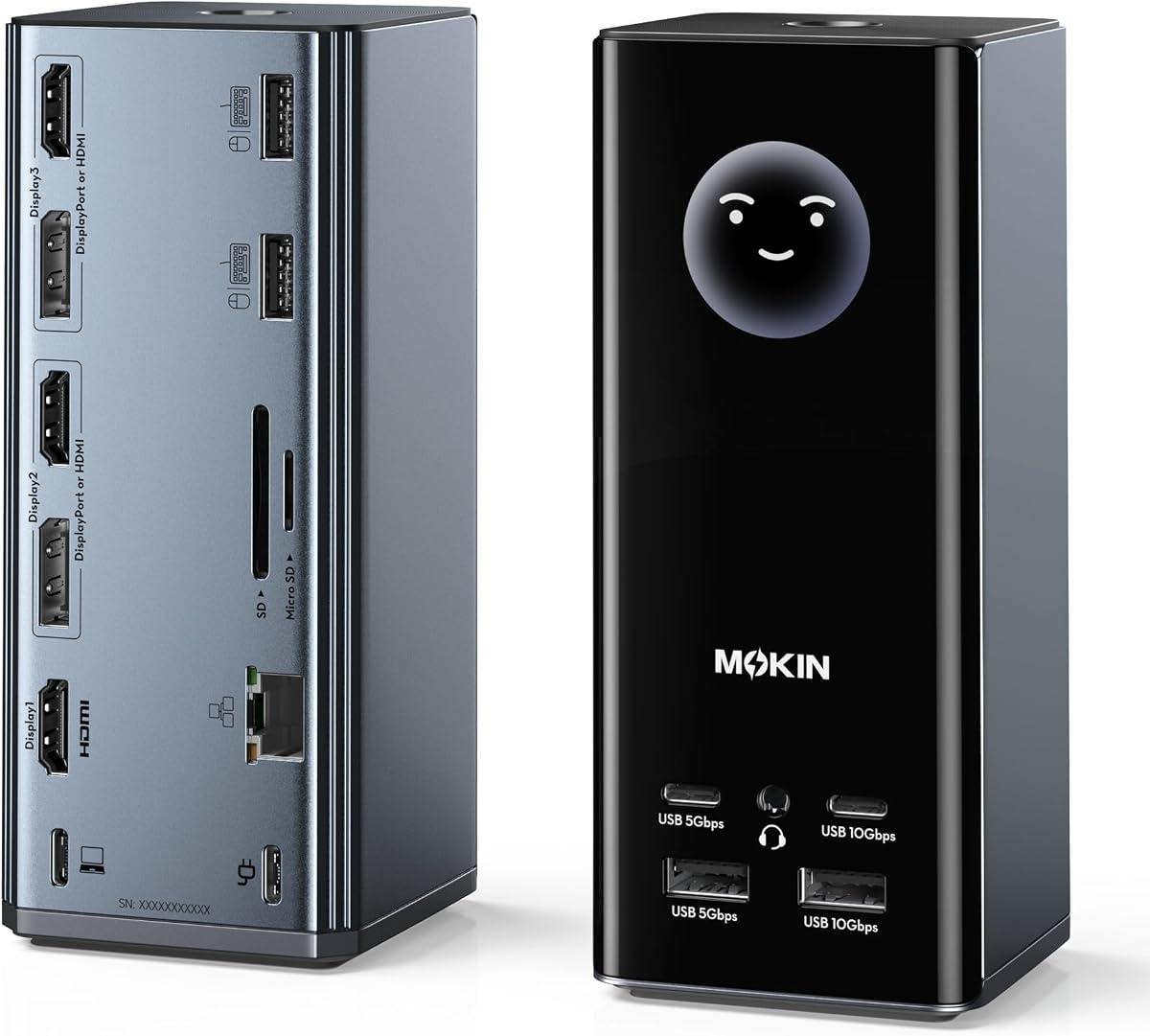
The MOKiN 17-in-1 Smart Display Dock combines five video outputs, 10Gbps USB connectivity, Gigabit Ethernet, memory-card slots, charging, and an intelligent front LCD. Its 4.2 rating makes it a visually distinctive option for a Windows workstation where a quick glance at weather, charging wattage, resolution, and port status is valuable.
We may earn a commission when you buy through this link, at no additional cost to you.
Users can build a three-monitor arrangement from three HDMI ports, two DisplayPort ports, or a mixture of both. The supplied specifications list support for three independent 4K 60Hz monitors, making this one of the more ambitious native multi-screen options. It also includes two 10Gbps and two 5Gbps USB connections, two USB 2.0 ports, a 104MB/s SD and microSD reader, Gigabit Ethernet, and a 3.5mm audio jack.
The intelligent LCD adds more than decoration. It can display local weather through built-in Wi-Fi, along with charging wattage, active display resolutions, and port status. A double-tap privacy control can switch off the external screens, and silicone suction cups help stabilize the dock. Extended content on separate screens is limited to Windows, and a charger is not included despite the dock accepting up to 100W input.
Choose this dock if you want a visually organized command center with flexible display outputs and useful desk information at a glance. It is suitable for programmers, traders, creators, and general multitaskers using compatible Windows laptops. Verify the host supports USB-C, USB4, or Thunderbolt video output and provide a suitable power adapter for a full-load setup.
The LCD can reveal information that normally requires opening a utility, including connection status, resolution, charging power, and local weather. This makes troubleshooting more immediate and gives the dock a distinct place in the physical workspace.
The combination of 10Gbps USB connections and multiple HDMI and DisplayPort outputs supports both data-heavy accessories and complex screen arrangements. Users can select the connector mix that best matches their available monitors.
We may earn a commission when you buy through this link, at no additional cost to you.
The right three-monitor dock depends on your laptop's video capabilities, operating system, display resolutions, charging needs, and peripheral requirements. These factors are more important than the total port count because several docks advertise impressive connections that cannot run independently at the same time.
Native USB-C video, Windows MST, and DisplayLink use different methods to produce extended desktops. Native USB-C and MST generally work without an additional display driver on compatible Windows systems, while DisplayLink can overcome Apple Silicon's native external-display limit but requires driver installation. Some models support only mirrored output on macOS, and one explicitly excludes Mac users.
Choose based on your operating system first. For Windows, MST is often the simplest route to three independent panels. For a modern MacBook, verify that the dock specifically supports Mac multi-screen expansion and that the required DisplayLink software is acceptable. Do not assume that a USB-C port alone guarantees three-screen support.
A full-featured USB-C port must support video output, usually through DisplayPort Alternate Mode, and may also need Power Delivery for charging. Some Thunderbolt 3, Thunderbolt 4, USB4, and modern USB-C laptops provide the necessary support, but data-only ports do not. A particular laptop can also lack the graphics capability to drive every output at the advertised resolution.
Check the manufacturer specifications for your exact laptop model rather than relying only on its connector shape. Look for DisplayPort Alternate Mode, Thunderbolt, USB4, MST support, and Display Stream Compression where applicable. If the dock supports native video on some ports but uses DisplayLink on others, confirm which outputs are affected.
Three-screen support does not automatically mean three 4K screens at 60Hz. Some docks support one 4K 60Hz display and two 1080p 60Hz displays, while others divide bandwidth so the third panel runs at 30Hz. DisplayLink can also impose resolution and refresh-rate limitations that differ from native USB-C output.
Match the dock to the demands of each monitor. Financial dashboards and office productivity may work well at 1080p, while color-critical editing and dense timelines benefit from 4K panels. For motion-heavy work, prioritize consistent 60Hz and check whether the host, dock, and display adapters all support that configuration.
A three-monitor dock should power the host laptop while it drives several displays and connected accessories. The supplied specifications range from 100W host charging to 85W pass-through, with some docks accepting 100W input and others including a dedicated 110W or 120W power adapter. A low-wattage charger may trigger warnings or prevent every display and port from working simultaneously.
Prioritize a dock with sufficient input power and confirm whether the adapter is included. High-performance laptops may require the full rated supply during heavy workloads. If a charger is not included, factor the correct wattage, connector type, and compatible USB-C power delivery profile into the purchase decision.
The number of USB ports matters when you connect a keyboard, mouse, webcam, printer, headset, external drives, and capture equipment. USB 2.0 remains adequate for many input devices, but 5Gbps and 10Gbps connections are much better for external SSDs, card readers, and large media files. A dock can also use internal resources, so two high-bandwidth drives may perform differently from one.
Count the peripherals you actually use and distinguish general-purpose data ports from charging-only or host connections. For most professional desks, a mix of at least one 10Gbps port, several 5Gbps ports, and dedicated charging is more useful than a large collection of slow USB 2.0 sockets.
Gigabit Ethernet provides a stable alternative to Wi-Fi, while 2.5Gbps Ethernet offers more headroom for large transfers. A 3.5mm audio jack is useful for meetings and calls, and integrated SD and microSD readers can streamline photography and video workflows. These secondary features often determine whether a dock feels like a complete daily workstation.
Choose the ports that match your routine rather than paying for unused capabilities. Frequent editors and photographers may prioritize card readers, while remote workers may value Ethernet and audio more. Some docks also include a front USB-C charging port, allowing a phone to charge without taking a high-speed data connection.
A three-monitor dock remains connected throughout the workday, so its size, heat management, cable layout, and stability matter. Aluminum construction can aid heat dissipation, while vertical or horizontal placement options help the dock fit different monitor arrangements. The Selore and MOKiN models use a vertical form and silicone base, whereas several business-oriented docks include a security slot.
Consider desk space, monitor stands, and whether you need to lock the dock to a surface. Smart LCDs and privacy buttons are also useful in open offices, allowing external screens to be switched off without locking the computer. These physical features can have a greater day-to-day impact than an extra low-speed USB port.
Begin by confirming that your laptop's USB-C port supports the required video and charging functions. Connect the dock to a suitable power source first, then attach the host cable. Next, connect the monitors one at a time using the specified HDMI or DisplayPort arrangement, power on the displays, and adjust the operating system's display settings to Extend rather than duplicate the desktop where supported.
Install any required DisplayLink driver before judging the dock's Mac or multi-screen performance. For native MST docks, confirm that the host laptop supports MST and the required resolution. Use the dock's screen-control or privacy button to switch external displays off when needed, and use the included LCD, where present, to verify charging wattage, port status, and active display resolutions.
Keep the dock and its cables supported, ventilated, and away from liquids. Use the specified USB-C host cable and an adequately powered adapter, especially when all three displays are active. Update display drivers and operating-system software as needed, and periodically inspect connectors for dust. If you change laptops, recheck operating-system, video-mode, and charging compatibility rather than assuming the previous configuration will be identical.
No. The laptop must have a USB-C or Thunderbolt connection that supports video output, and its graphics system must handle the requested display configuration. For Windows triple-display use, MST support is also important. For MacBook expansion, look for a DisplayLink-based model and install the required driver.
It depends on the model. The Acer 13-in-1 includes a 110W adapter, and the TobenONE DisplayLink model includes a 120W adapter, while several other docks require a compatible charger to be supplied separately. Check the listed input wattage and recommended minimum before connecting all displays and high-power accessories.
Some models can, but they generally use DisplayLink to bypass native display limitations. The Plugable 13-in-1 lists support for modern Apple Silicon systems and MacBook Neo, while the TobenONE DisplayLink dock also supports multiple screens. Driver installation is required, and other products in the roundup offer mirrored output or are not recommended for Mac systems.
Not necessarily. The list includes docks that support three 4K 60Hz displays, others that provide one 4K 60Hz screen plus two 1080p 60Hz screens, and some that reduce the third display to 30Hz. Host graphics capability, MST bandwidth, Display Stream Compression, and the chosen output combination all affect the final result.
The supplied product information states that protected content such as Netflix and Hulu is not supported on the relevant DisplayLink models. This is a common limitation associated with virtual display capture. Users whose primary activity involves protected streaming should prioritize a native-display dock and verify the service's support requirements.
USB 2.0 supports transfer rates up to 480Mbps, which is adequate for keyboards, mice, and other basic accessories. A 10Gbps port is much better suited to external SSDs, high-resolution media, and large file transfers. Choose based on the peripherals you connect rather than the port count alone.
It can be, especially in shared workspaces, offices, dormitories, or areas with frequent foot traffic. A compatible cable lock can secure the docking station and sometimes the connected laptop to a desk. If physical security is not a concern, prioritize display support, charging, and networking instead.
Yes, when the host and dock support the required functions. A single USB-C host cable can carry display data, peripheral data, and charging to the laptop, while the dock's external power supply powers displays and accessories. Native video, MST, and DisplayLink each have different host and driver requirements, so compatibility should be confirmed before installation.
The Acer 13-in-1 stands out for Windows users seeking independent triple displays, 100W charging, an included adapter, extensive peripheral connections, and physical security. The Plugable 13-in-1 is a strong business-focused option for teams that need DisplayLink expansion on modern Macs, while the Selore 17-in-1 offers the broadest combination of native display outputs, fast USB, card reading, Ethernet, smart status features, and privacy control.
Prioritize host compatibility before every other feature. Confirm your operating system, USB-C video mode, MST or DisplayLink requirement, desired resolutions, refresh rates, and power needs. After that, choose the dock with the right connector mix, charging capacity, network speed, and peripheral ports for your actual desk rather than simply selecting the largest port count.
Product specifications, package contents, and current availability can change, so review the latest listing before making a final decision. Do not rely on a dock's headline number alone; three-display support, high refresh rates, charging, and operating-system behavior must all work together on your particular laptop and monitor combination.
