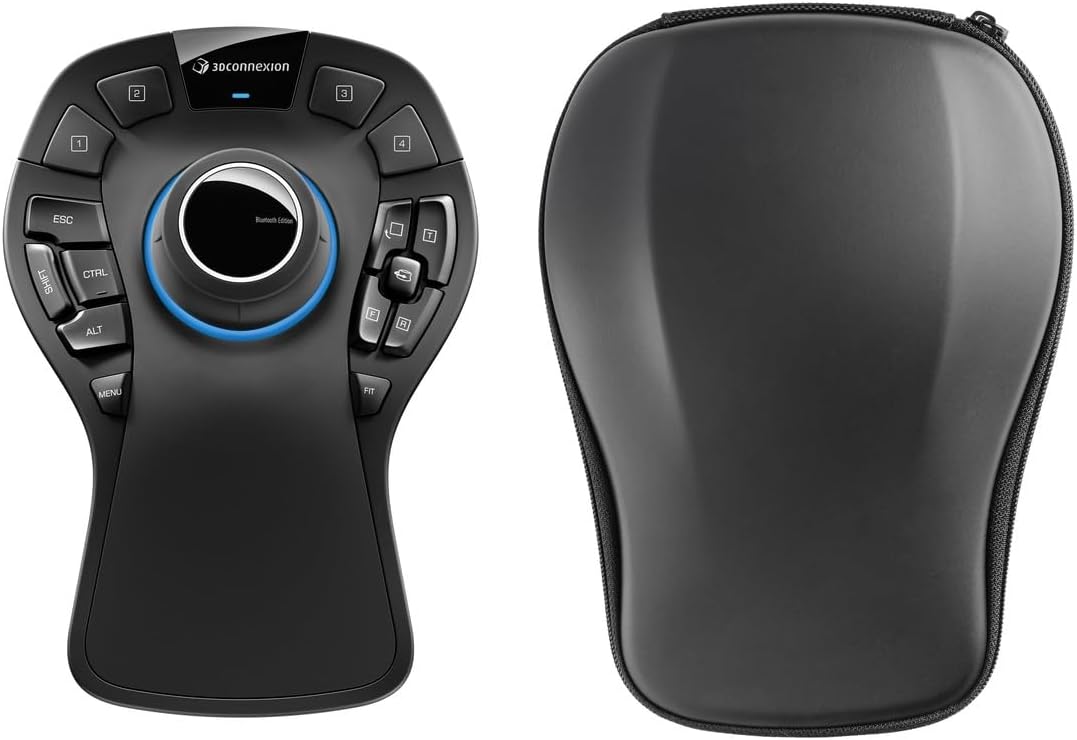
3Dconnexion SpaceMouse Pro Wireless BT
4.4Editor score
Six-degrees-of-freedom navigation
Wireless USB-C connectivity
Rechargeable 1100 mAh battery
The best Mouse for Solidworks guide compares ergonomics, precision, controls, connectivity, and features for professional CAD workflows.
A Mouse for Solidworks can shape how comfortably and accurately you navigate assemblies, constrain sketches, manipulate large CAD models, and inspect fine details. The right pointer device should combine accurate tracking, responsive buttons, comfortable support, and workflow features that reduce repeated actions without getting in the way of precision work.
This guide compares ten real options across general productivity, mobile CAD, ergonomic office, wireless, and gaming-oriented designs. We evaluated the supplied specifications for sensor precision, button access, scroll behavior, connectivity, battery considerations, programmable controls, multi-device support, and the practical value each mouse offers to Solidworks users.
Each review explains who the product is likely to suit, where its strengths matter most, and where compromises may arise. The list includes premium 6DoF control, feature-rich productivity mice, compact mobile workflows, and configurable gaming options; current prices and availability can change, so compare specifications alongside current listings.
4.4Editor score

4.6Editor score

4.4Editor score
This side-by-side comparison highlights the most important differences among the ten mice, including their control styles, sensor specifications, connectivity, scrolling mechanisms, and suitability for different Solidworks workflows.




The 3Dconnexion SpaceMouse Pro Wireless BT is the most purpose-specific choice in this guide for anyone who spends substantial time rotating, panning, and zooming 3D assemblies in Solidworks. Its 4.4 rating and six-degrees-of-freedom sensor distinguish it from conventional mice that primarily move a pointer across two axes.
We may earn a commission when you buy through this link, at no additional cost to you.
The central advantage is direct spatial navigation. Instead of repeatedly combining mouse movement with keyboard modifiers, users can push the controller forward, backward, sideways, or upward to move the Solidworks view. That can make large assemblies and complex part geometry easier to inspect while reducing the need to change working habits midway through a modeling session.
Wireless and USB-C connectivity improve desk flexibility, while Bluetooth Low Energy support broadens compatibility. The rechargeable 1100 mAh battery removes the need for disposable cells, although users will still need to recharge the controller periodically. Its specialized layout is the main compromise because it supplements rather than replaces a normal mouse.
Choose this model if spatial manipulation is central to your Solidworks work and you value purpose-built 3D controls over a conventional productivity feature set. It is especially attractive for engineers who regularly examine assemblies from different angles, coordinate large assemblies, or work in environments where keeping the desk uncluttered matters.
The six-degrees-of-freedom sensor provides access to movement along three axes and rotation, aligning its controls closely with how a 3D scene is perceived. In Solidworks, that can make view changes feel more direct when inspecting geometry from multiple directions.
Wireless operation and USB-C connectivity give users more freedom in arranging the controller, while Bluetooth Low Energy offers another connection option. The rechargeable 1100 mAh battery is designed for repeatable use without disposable battery replacement.
We may earn a commission when you buy through this link, at no additional cost to you.
The Pale Gray Logitech MX Master 4 is a strong all-around Mouse for Solidworks because it combines precise pointing, high-speed scrolling, customizable controls, and an ergonomic shape. Its 4.3 rating reflects a capable productivity device that offers more workflow-oriented features than a basic office mouse without becoming specialized gaming hardware.
We may earn a commission when you buy through this link, at no additional cost to you.
The Haptic Sense Panel can provide configurable feedback for specific actions, shortcuts, and notifications, while the Actions Ring places frequently used filters, adjustments, and shortcuts close to the cursor. These features are especially relevant in Solidworks, where tool access and view navigation occur throughout a long modeling session.
The MagSpeed wheel can scroll through 1,000 lines per second and stop precisely on a pixel, which is useful when moving through feature trees, long part lists, and detailed documentation. USB-C dongle connectivity and Bluetooth provide flexible setup options, while Quiet Clicks reduce distractions. The extra controls do create a learning curve, and the Mac-specific listing notes that a cable is not included.
This is a strong recommendation for engineers who want one mouse to handle CAD, documentation, and everyday productivity. The haptic panel and Actions Ring are useful additions, but its core value still rests on accurate navigation, fast scrolling, and a comfortable ergonomic shape.
The Actions Ring creates an app-aware overlay for filters, adjustments, and shortcuts, reducing the need to hunt through toolbars. Its value in Solidworks depends on which commands you assign, making a deliberate mapping of frequent operations worthwhile.
A 1,000-line-per-second scroll rate helps users move through long trees, specifications, and code lists, while pixel-level stopping provides more control when precision matters. Quiet Clicks also make the mouse suitable for shared or focused offices.
We may earn a commission when you buy through this link, at no additional cost to you.
The Graphite version of the Logitech MX Master 4 shares the strong feature set of the Pale Gray model in a darker finish. With a 4.3 rating, it is an attractive choice for Solidworks professionals who want ergonomic support and software-assisted customization across demanding CAD and general productivity sessions.
We may earn a commission when you buy through this link, at no additional cost to you.
Its natural tilt, thumb scroll wheel, and intuitive button placement help distribute repetitive input more comfortably. The Haptic Sense Panel and Actions Ring make common commands more accessible, while the MagSpeed wheel handles both rapid traversal and precise positioning. A USB-C dongle, advanced radio chip, and Bluetooth option support different working arrangements.
As with other full-size productivity mice, the sculpted form and extensive control set may not appeal to users who prefer a small, button-light design. The quieter clicks and fast wheel are meaningful advantages in a focused workspace, but setup time is needed to assign commands and adapt to the thumb controls.
Pick this version if you favor a traditional, full-sized ergonomic mouse with modern shortcuts and wireless flexibility. It works well for engineers who alternate among detailed modeling, assembly review, spreadsheet work, and technical communication without needing a separate 3D controller.
The natural tilt and thumb wheel support a more relaxed hand position during repetitive selection, orbiting, and scrolling. Its larger body may require a relaxed grip, so users switching from compact mice should allow time to adjust.
App-aware controls, haptic feedback, and programmable actions make it possible to tailor the mouse to repeated Solidworks tasks. Assigning commands thoughtfully can turn the extra buttons into genuine workflow shortcuts rather than unnecessary complexity.
We may earn a commission when you buy through this link, at no additional cost to you.
The Space Black Logitech MX Master 4 for Mac is the most natural choice in this roundup for a Solidworks workstation built around Apple hardware. Its 4.4 rating, matching finish, and Logi Options+ integration for macOS distinguish it from the general MX Master 4 versions.
We may earn a commission when you buy through this link, at no additional cost to you.
It retains the Haptic Sense Panel, customizable Actions Ring, MagSpeed scrolling, ergonomic tilt, thumb wheel, and Quiet Clicks that make the series effective for CAD and general work. USB-C charging fits modern Mac setups, while the stated macOS, iPadOS, and Windows compatibility offers flexibility if you switch between devices.
The charging cable is not included, so new owners may need an appropriate USB-C cable if they do not already have one. Some Solidworks functions can vary by operating system and hardware, making it sensible to confirm the exact requirements of your intended software environment before purchasing.
Choose this model for a polished Mac-centered engineering desk where native software integration and device aesthetics matter. It is also a strong option for Windows users who want a multiplatform mouse, provided the included functions meet your particular Solidworks workflow needs.
Matching Apple-oriented finishes and Logi Options+ support for macOS create a more cohesive setup than a generic multiplatform mouse. The effect is especially noticeable for users who spend most of their day moving between Solidworks, documentation, and communication applications.
The MagSpeed wheel handles long documents and detailed model trees, while Quiet Clicks reduce audible distractions. Haptic and Actions Ring controls add useful command access without forcing repeated trips to the Solidworks command manager.
We may earn a commission when you buy through this link, at no additional cost to you.
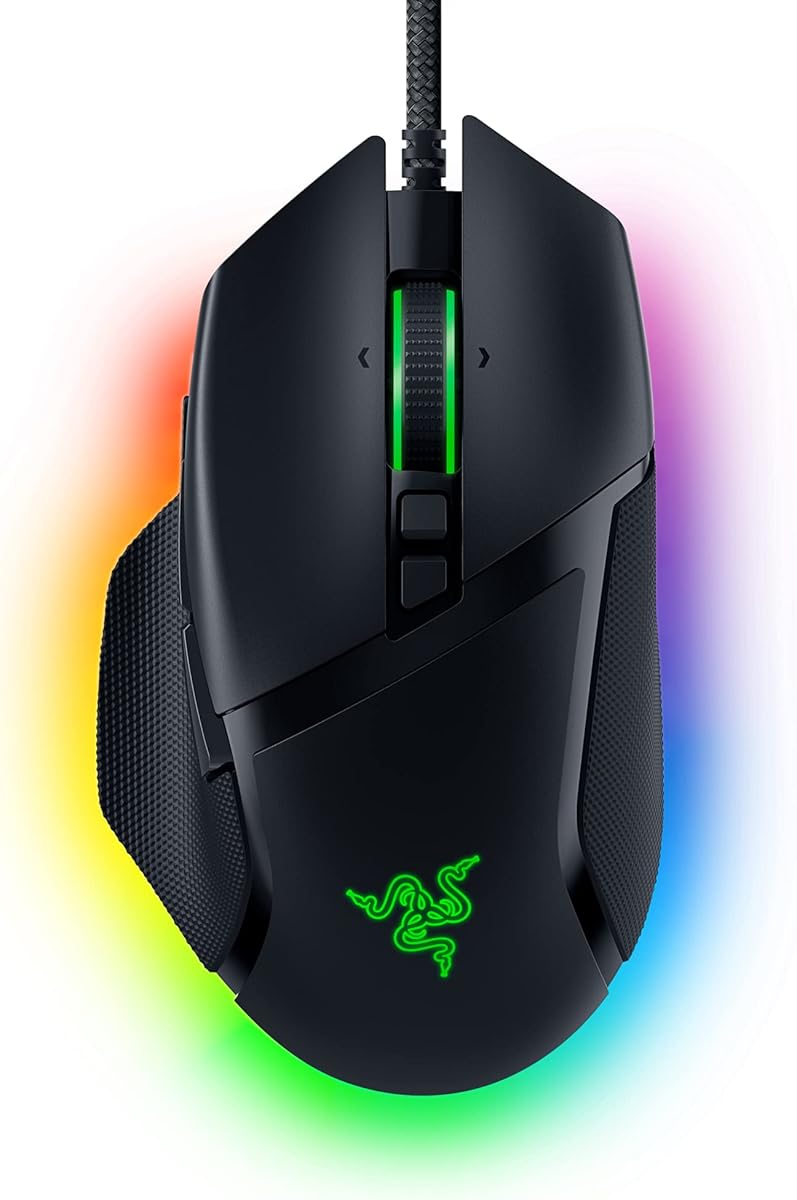
The Razer Basilisk V3 has the highest rating in the roundup at 4.6, making it an attractive precision-focused option for Solidworks users who also enjoy configurable gaming peripherals. Its 26,000 DPI optical sensor, zero-smoothing tracking, and ergonomic thumb-rest shape provide the foundation for accurate pointer work.
We may earn a commission when you buy through this link, at no additional cost to you.
Eleven programmable buttons give engineers room to assign macros and secondary functions, while the HyperScroll tilt wheel can free-spin or switch to tactile mode. The latter is particularly useful when moving between long feature trees, property panels, and drawing views but requiring a distinct stop for detailed adjustments.
The main disadvantages are aesthetic rather than functional. Chroma lighting and a pronounced gaming shape may not fit a restrained office, and wired operation means there is no battery to charge but also less freedom to move around the desk. Razer Synapse adds configuration depth, though users who dislike gaming software may prefer a simpler device.
This mouse suits Solidworks professionals who value a high-resolution sensor, abundant shortcuts, and a versatile wheel. Its wired design can also provide a straightforward, always-ready connection for a fixed CAD workstation.
The 26,000 DPI optical sensor supports detailed pointer positioning, while the product's stated zero-smoothing tracking supports consistent movement. Its 11 programmable buttons let users place common CAD actions close at hand after configuring them in Razer Synapse.
HyperScroll can cover long lists rapidly or provide tactile feedback for controlled movement. That versatility makes it useful when the same mouse handles both assembly-scale navigation and close inspection of dimensions or features.
We may earn a commission when you buy through this link, at no additional cost to you.
The Lenovo Yoga Pro Mouse offers a balanced mix of comfort, programmability, and practical connectivity for Solidworks users who want more capability than a basic office mouse. Its 4.4 rating and support for a 4000 DPI sensor make it a credible choice for CAD work without moving into specialist hardware.
We may earn a commission when you buy through this link, at no additional cost to you.
The ergonomic right-handed design includes soft side materials, a thumb rest, silent left and right buttons, and a configurable two-way metal scroll wheel. Programmable side and top buttons can be assigned to frequent actions, reducing repetitive trips to menus or the keyboard.
Its 4000 DPI maximum is lower than several high-end gaming options, and the right-handed shape makes it unsuitable for users who specifically require a left-handed configuration. Bluetooth-only operation also means users without Bluetooth cannot rely on a bundled receiver. The stated two-to-three-month battery interval should also be considered in relation to your own usage pattern.
Choose this mouse for general engineering work, study, or a mixed office and CAD role where programmable buttons and multi-device switching are valuable. It is particularly appealing for right-handed users who want a comfortable, rechargeable productivity mouse without the complexity of a larger specialist system.
Soft side materials, thumb-rest placement, silent primary buttons, and a right-handed grip make long sessions more comfortable. Six total buttons and software programmability create a useful balance between convenience and control.
Three on-the-fly DPI stages allow quick sensitivity changes, while software adjustment extends the range up to 4000 DPI. Dual-device Bluetooth 5.1 pairing helps users switch between a Solidworks workstation and a laptop without managing separate mice.
We may earn a commission when you buy through this link, at no additional cost to you.
The Logitech MX Master 3S is the most balanced recommendation in this guide for Solidworks professionals who want precise tracking, fast scrolling, strong ergonomics, and dependable multi-device support. Its 4.6 rating reflects a mature productivity design that performs well without adopting the visual language of gaming hardware.
We may earn a commission when you buy through this link, at no additional cost to you.
The 8000 DPI sensor can track on any surface, including glass, and supports customizable sensitivity for different stages of a design task. The MagSpeed wheel is described as 90 percent faster and 87 percent more precise than the cited previous standard, with near-silent operation that suits long documentation reviews.
Logi Options+ provides app-specific profiles, and the Flow feature can transfer text, images, and files between Windows and macOS computers. The mouse connects to as many as three devices over Bluetooth. It is a Bluetooth-only edition, so neither a USB receiver nor a charging cable is included, which should be checked before purchase.
This is the mouse we would most broadly recommend for a mixed Solidworks and productivity workload because it handles precise selection, scrolling, and device switching without excessive specialization. It is particularly well suited to users who value quiet operation and an ergonomic silhouette over gaming-focused lighting.
The 8000 DPI sensor gives users a broad sensitivity range and can track on surfaces beyond a conventional desk mat. Customizable settings help balance fine sketching input with faster movement through large assemblies.
Three-device Bluetooth support and app-specific profiles streamline mixed workstations. Flow adds a practical way to move text, images, and files between Windows and macOS systems, although the connection remains limited to Bluetooth.
We may earn a commission when you buy through this link, at no additional cost to you.
The Razer Naga V3 Pro Wireless is built for users who want unusually extensive control over their mouse layout. Its 4.2 rating reflects a specialized design whose swappable side plates make it possible to move between 12-button, six-button, and two-button arrangements.
We may earn a commission when you buy through this link, at no additional cost to you.
For Solidworks, the most relevant feature is the ability to choose how many side buttons are available rather than adapting permanently to a dense gaming layout. Razer Synapse supports remapping, advanced macros, and performance tuning, while the Focus Pro 50K optical sensor offers up to 50,000 DPI and high-speed tracking.
Its size and aggressive styling may feel excessive for conventional office work. Windows receives the full customization set, while macOS supports core mouse functions and onboard settings, making it less complete for Mac-centered engineering teams. The separate HyperFlux V2 and Mouse Dock Pro charging systems are also sold independently.
Choose the Naga V3 Pro when your work demands many accessible shortcuts and you value the ability to change the physical layout. It is best suited to Windows users who actively remap controls and want high-resolution tracking rather than a minimalist office experience.
Magnetic side plates offer three layouts, allowing users to increase or reduce the number of side buttons according to the task. That adaptability is useful for detailed CAD shortcuts, although two-button users may prefer a simpler mouse.
HyperSpeed Wireless supports low-latency use, Bluetooth favors longer battery life, and USB-C wired mode enables charging and connected operation. The stated battery ranges of up to 155 hours on HyperSpeed and 280 hours on Bluetooth are useful for frequently traveling engineers.
We may earn a commission when you buy through this link, at no additional cost to you.
The Logitech G PRO X2 SUPERSTRIKE combines a high-resolution sensor with the unusual Haptic Inductive Trigger System, giving it a 4.6 rating and a distinct identity. For Solidworks users, that trigger feedback can make selections and repeated commands feel more tangible than a standard click.
We may earn a commission when you buy through this link, at no additional cost to you.
Its HERO 2 sensor tracks at up to 44,000 DPI, over 888 IPS, and up to 88 g of acceleration. The mouse also supports 10 actuation points, five rapid-trigger reset levels, and 8 kHz polling over LIGHTSPEED Wireless. The lightweight 0.7 mm thin-wall shell and UHMWPE feet are designed for effortless movement.
Most advanced features require Logitech G HUB, and the polling figure was tested on a G640 mousepad. The 60–90 hour battery estimate depends on usage, while POWERPLAY 2 support for continuous wireless play requires a separately sold system. The design remains primarily gaming oriented despite its CAD-friendly precision.
Choose this mouse if you are a PC-first Solidworks user who values fast tracking and unusually responsive click feedback. It is also compelling for engineers who divide time between CAD and competitive games and want one wireless device for both.
The Haptic Inductive Trigger System provides real-time feedback as the primary button is pressed. In a CAD environment, that confirmation can help users feel command execution without looking away from the model.
The HERO 2 sensor and 8 kHz LIGHTSPEED Wireless are designed for responsive pointer movement. These specifications translate well to quick view changes and precise selection, though users should account for the gaming-oriented software requirements.
We may earn a commission when you buy through this link, at no additional cost to you.
The Razer Basilisk V3 X combines the familiar Basilisk ergonomic shape with wireless connectivity, making it a practical option for Solidworks users who want a comfortable, precise mouse without a cable. Its 4.4 rating and 18,000 DPI Razer 5G Advanced optical sensor support detailed pointer control.
We may earn a commission when you buy through this link, at no additional cost to you.
Nine customizable controls provide more shortcut access than a standard office mouse, and the signature form is designed to support different grips. Razer HyperSpeed Wireless favors low-latency use, while Bluetooth supports longer operation. The stated battery life reaches up to 285 hours on HyperSpeed and 535 hours on Bluetooth, subject to usage conditions.
Razer Chroma lighting and the aggressive styling are less suitable for users who want a completely understated office accessory. Razer Synapse is needed for customization and optimal accuracy, and users are advised to consider operating-system support and Windows pointer settings when fine-tuning performance.
Choose this model for a wireless CAD workstation where ergonomic support and accessible controls are important but a 50,000 DPI specialist sensor is unnecessary. It is also a logical choice for users already comfortable with Razer mice and software.
HyperSpeed Wireless and Bluetooth remove the cable from the working surface, while multi-device support makes mixed workstation use easier. The long stated battery intervals reduce the need for frequent charging.
Nine customizable controls can hold frequently used Solidworks commands, and the 18,000 DPI sensor provides a useful balance of resolution and everyday control. Chroma lighting adds visual customization but can be disabled if a restrained setup is preferred.
We may earn a commission when you buy through this link, at no additional cost to you.
The best Mouse for Solidworks is not determined by gaming specifications alone. Your decision should reflect the precision of your models, the duration of your sessions, the commands you use most often, and whether you need a conventional pointer, specialized 3D navigation, or both.
Solidworks users move between tiny sketch entities, dimensions, feature icons, and large assemblies. A dependable sensor with adjustable sensitivity helps you make that transition without losing control. The 8000 DPI MX Master 3S, 18,000 DPI Basilisk V3 X, 26,000 DPI Basilisk V3, 44,000 DPI PRO X2 SUPERSTRIKE, and 50,000 DPI Naga V3 Pro provide increasingly high nominal resolution, while the Yoga Pro reaches 4000 DPI and remains practical for many engineering workflows.
Choose a sensor that feels consistent at the sensitivity you actually use. Maximum DPI is not automatically better, since excessive sensitivity can make small selections harder to control.
Long modeling sessions can make hand and wrist comfort as important as raw precision. Full-size sculpted mice, such as the MX Master series, support a relaxed grip, while the Razer Basilisk models add prominent thumb rests. The Yoga Pro uses soft side materials, a thumb rest, and a right-handed shape. Form factor matters more than the label attached to it, so hand size, grip style, and button reach should guide the final choice.
Prioritize a shape you can hold without repeatedly stretching, twisting, or shifting your hand. A comfortable mouse also reduces the temptation to postpone precise work because of fatigue.
A standard mouse is essential for selecting geometry and commanding Solidworks, but a 6DoF controller can make camera movement more direct. The 3Dconnexion SpaceMouse Pro Wireless BT is built specifically for six-degrees-of-freedom control and can complement rather than replace a conventional mouse. Consider it if rotating assemblies, zooming through model geometry, or changing view angles is a frequent part of your work.
If your job is mostly 2D sketching, drawings, or spreadsheet-based documentation, a strong productivity mouse may be sufficient. If spatial inspection dominates, the additional controller can be more valuable than extra mouse buttons.
The number of programmable buttons ranges from the Yoga Pro's six-button arrangement to the Basilisk V3's 11 controls and the Naga V3 Pro's expandable layouts. Extra buttons can launch frequently used commands, but they only improve productivity when they are mapped deliberately. The MX Master models add app-aware Actions Ring controls and haptics, while the Razer and Logitech gaming options provide deeper remapping through their respective software.
Map only the commands you use every day and check whether those functions remain available in Solidworks or the software layer that assigns them. Poorly configured buttons can create more friction than value.
Solidworks includes long feature trees, bill-of-materials lists, property panels, and drawing views, so the scroll wheel must handle both distance and control. The MagSpeed wheels offer high-speed movement with precise stopping, while HyperScroll models support both free-spinning and tactile modes. A conventional metal wheel remains simple and predictable, but may require more repeated input for lengthy lists.
Test the wheel in the contexts you use most. Fine adjustment around a model edge and rapid traversal through a long tree are different tasks, and a model that handles both can be more versatile.
Wired operation provides a consistent connection and removes battery management, which makes the Basilisk V3 suitable for a stationary CAD desk. Wireless options offer more freedom, but the details matter: the MX Master 3S is Bluetooth-only and includes no receiver, while MX Master 4 versions support a USB-C dongle and Bluetooth. The Yoga Pro and Naga V3 Pro emphasize Bluetooth pairing, while the Basilisk V3 X offers both HyperSpeed Wireless and Bluetooth.
Choose connectivity based on your workstation layout and the devices you need to control. Confirm operating-system support and whether a receiver, adapter, or charging cable is included before ordering.
Rechargeable and wireless mice reduce cable clutter but introduce charging routines. The Yoga Pro is stated to last two to three months on a charge, the Basilisk V3 X offers particularly long stated intervals, and the SpaceMouse Pro includes a rechargeable 1100 mAh battery. The MX Master 3S listing does not include a charging cable, so ownership experience can depend on accessories you already own.
Look for a battery interval that comfortably covers your working rhythm. A long rating is useful, but reliable recharging habits and convenient charging access are more important than a headline figure alone.
Customization can be valuable, but it is only useful when the required software is available and stable on your operating system. Logitech productivity mice use Logi Options+ for app-specific profiles, while Razer devices rely on Razer Synapse. The Naga V3 Pro offers full customization on Windows, with only core mouse functions and onboard settings on macOS. The MX Master 4 for Mac is explicitly oriented toward Logi Options+ for macOS.
Check operating-system compatibility before choosing a heavily programmable model. Your Solidworks version and host operating system should support the mouse features you intend to rely on.
Begin by configuring the pointer sensitivity for the display and software you use most often. Test it in a simple model or empty part rather than immediately applying it to a complex assembly. Create separate settings for fine sketch selection, normal modeling, and rapid view navigation, then change sensitivity only when the task genuinely changes.
Assign the mouse's additional buttons to a small set of reversible commands that you use frequently. Learn the layout in an unrelated file first, and avoid placing destructive operations on buttons that could be pressed accidentally. If the mouse includes an Actions Ring, haptics, or onboard modes, configure each one deliberately and review the behavior after updating the supporting software.
Keep the sensor surface clean and unobstructed, and use a suitable tracking surface if your chosen model requires one. Charge wireless mice on a predictable schedule, clean removable buttons or wheel areas according to the manufacturer's instructions, and update the control software when it offers compatibility improvements. For 6DoF use, keep the controller on a clear surface and return it to center before beginning a new navigation movement.
A gaming mouse can be excellent for Solidworks because high-resolution sensors, precise switches, and programmable buttons support detailed selection and repeated commands. The most important factor is not its appearance but whether its ergonomics, software, and controls suit long CAD sessions. A productivity mouse may feel more discreet, while a gaming mouse often provides more button choices and stronger performance specifications.
The best DPI depends on monitor size, display resolution, hand movement, and the precision required by the task. Higher sensitivity covers the screen quickly, while lower sensitivity can make small sketch features easier to place. A mouse with adjustable DPI lets you move between coarse navigation and fine detail without changing hardware.
You do not need one to use Solidworks, but it can make 3D navigation more direct and reduce reliance on keyboard modifiers. It is most useful for engineers who frequently rotate, pan, and inspect complex assemblies. A regular mouse remains necessary for selecting geometry, entering dimensions, and operating most familiar controls.
A wired mouse offers a straightforward, always-connected setup without battery charging, while wireless provides greater desk flexibility. Modern wireless options can support responsive workflows, so the deciding factors are device switching, receiver requirements, software support, and your preference for a cleaner workspace. Check whether a receiver or charging cable is included before buying.
Programmable buttons can place frequently used commands close to the pointer, reducing repeated trips to toolbars or keyboard shortcuts. They are most valuable when assigned to a small set of consistent actions. Because software and operating-system support can vary, verify that the mouse's customization software works with your Solidworks setup.
The best shape is the one your hand can hold comfortably for long periods without strain. Full-size sculpted designs often suit relaxed grips, while smaller shapes may appeal to users who move their hand frequently. Consider hand size, finger reach, thumb placement, and whether the mouse causes wrist extension or unnecessary gripping force.
The supplied product information identifies the MX Master 3S in this roundup as a Bluetooth-only edition that does not include a Logi Bolt receiver. It connects to up to three devices over Bluetooth and supports Windows, macOS, Chrome OS, and Linux. If your workstation lacks Bluetooth, choose a model explicitly designed around receiver connectivity or use another input method.
Start by selecting a sensitivity level that feels accurate without requiring large hand movements, then test it in both a simple sketch and a detailed assembly. Keep the tracking surface clean and ensure the sensor is not obstructed. Some Razer models specifically recommend disabling Windows Enhance Pointer Precision and using Razer Synapse to further optimize accuracy.
The SpaceMouse Pro Wireless BT stands out for engineers who want dedicated six-axis navigation, while the Logitech MX Master 3S is the broadest all-purpose recommendation. The Lenovo Yoga Pro Mouse offers the strongest value-oriented package, combining programmable controls, adjustable sensitivity, and comfortable ergonomics without the complexity of specialist gaming hardware.
Prioritize the mouse that matches your actual workflow rather than the largest specification sheet. Frequent 3D assembly inspection favors a 6DoF controller, detailed model navigation benefits from a precise sensor and fast wheel, and long sessions call for a shape that genuinely fits your hand. Button count and haptics matter most when they are configured around commands you use every day.
Before purchasing, confirm compatibility with your Solidworks workstation, the included accessories, and your preferred operating system. Product features and current prices can change over time, so check the latest listing and compare the complete specification set before making a final decision.