
USB C Docking Station Dual DisplayPort 8-in-1
4.3Editor score
Dual 4K DisplayPort outputs
Maximum 100W PD charging
Eight-port expansion
Our expert docking station with Display Port guide compares 10 top models for display options, charging, connectivity, compatibility, and productivity.
A docking station with Display Port can transform a laptop into a more capable workstation by adding external monitors, faster data connections, wired networking, charging, and USB peripherals through one host cable. The best model depends on your laptop, operating system, number of displays, and need for a clean, dependable desk setup.
This guide compares ten docking stations based on their supplied display outputs, maximum display configurations, charging capabilities, data connectivity, host compatibility, and intended work environments. It covers native USB-C solutions, DisplayLink-based models, compact hubs, and feature-rich docks for Windows, macOS, and ChromeOS users.
Each pick highlights a different reason to consider it, from budget-friendly dual-monitor expansion to premium multi-screen workstations. Product ratings and specifications reflect the available information, while configurations and prices can change, so readers should confirm current compatibility and pricing before purchasing.
4.3Editor score

4.5Editor score

4.3Editor score
The comparison below highlights each dock's display configuration, charging capability, port selection, and principal compatibility consideration so buyers can quickly identify the model that best fits their workstation.




The Dell Pro Laptop Docking Station WD25 is the strongest all-around choice in this guide, combining a 4.5 rating with support for as many as four high-resolution displays. It is designed for the modern office, where one USB-C connection can organize displays, powered peripherals, and network connectivity. Its support for both Dell AI PCs and non-Dell systems makes it useful beyond a single corporate fleet.
We may earn a commission when you buy through this link, at no additional cost to you.
The dock's standout feature is 100W host power delivery, allowing a compatible laptop to charge while the workstation remains active. Its native support for multiple high-resolution displays provides more flexibility than a simple two-port adapter, while the inclusion of DisplayPort and HDMI opens different monitor choices. The ambidextrous USB-C cable can be routed from either side, which is a thoughtful detail in compact or crowded desks.
This model also distinguishes itself through manageability and environmental design. It belongs to Dell's commercial docking family, with flexible management capabilities intended to simplify IT operations. The product information also states that standby power consumption can be reduced by up to 72%, while the enclosure uses at least 65% postconsumer recycled materials and the packaging is made with recycled or renewable materials. Those details matter for organizations deploying docks consistently.
The principal caveat is that buyers should confirm the complete port layout and exact monitor combinations for their particular equipment. Four-display support does not mean every display will run at its maximum resolution, and the host laptop's graphics capabilities remain important. Even so, the WD25 offers an unusually balanced combination of charging, display capacity, fleet management, and everyday flexibility. It is the top recommendation for professionals who want a dependable full-size dock without settling for a basic display adapter.
Native support for up to four high-resolution displays makes the WD25 suitable for analysts, designers, and office users who keep multiple applications visible. DisplayPort and HDMI provide access to a broad range of monitors, while the single USB-C host connection reduces desk clutter.
Up to 100W host charging keeps compatible laptops powered during demanding work sessions. Flexible commercial management features add value for IT teams, while broad PC compatibility makes the dock less restrictive than a model tied to one narrow device category.
We may earn a commission when you buy through this link, at no additional cost to you.
The MOKiN USB C Docking Station Dual DisplayPort is the budget-focused selection, offering a generous port array and two dedicated DisplayPort connections. It holds a 4.3 rating and is particularly attractive to Dell, HP, and Lenovo laptop users who want dual 4K@60Hz output without moving to a large enterprise dock. The 8-in-1 design also includes HDMI, VGA, USB-C, and two USB-A connections.
We may earn a commission when you buy through this link, at no additional cost to you.
DisplayPort is central to this model's appeal. Both DP outputs are listed as supporting 4K@60Hz, while the HDMI output also supports 4K@60Hz and VGA handles 1080p@60Hz. That mix lets users connect modern high-resolution monitors while retaining an option for older projected or legacy displays. A dedicated USB-C Power Delivery input can supply up to 100W, although the host must support the required charging and display protocols.
Data connectivity is less ambitious than the display specification. Its USB-C 2.0 and two USB-A 2.0 ports support transfer rates up to 480Mbps, making them suitable for keyboards, mice, flash drives, and many external storage devices, but not ideal for demanding workflows that need multi-gigabyte transfers. MacBook owners should also note the explicit limitation: multiple external displays work in mirror mode rather than extended mode.
This dock is a compelling choice for cost-conscious Windows users who prioritize dual DisplayPort output, flexible legacy connectivity, and host charging. It is less suitable for Mac-based extended desktops, high-speed storage workflows, or users who require three or more independent screens. For those who need only a practical dual-monitor adapter, it delivers an unusually useful set of features and includes an 18-month warranty.
Two dedicated DisplayPort outputs make this adapter easy to build around, especially with compatible high-resolution monitors. The additional HDMI and VGA connections are useful for mixed equipment, temporary presentations, and older display hardware.
USB-C and USB-A ports cover common peripherals such as a keyboard, mouse, flash drive, and external hard disk. The 480Mbps limit keeps the dock focused on general productivity rather than intensive data transfer.
We may earn a commission when you buy through this link, at no additional cost to you.
The Anker USB-C Hub 11-in-1 is a versatile option for users who want a dock, hub, card reader, and charging solution in one device. It carries a 4.2 rating and expands a compatible laptop with DisplayPort, HDMI, Ethernet, audio, card readers, and several USB connections. Its design is less focused on a maximum number of screens and more balanced for daily productivity.
We may earn a commission when you buy through this link, at no additional cost to you.
The most notable strengths are the two 10Gbps data ports—one USB-C and one USB-A—plus separate 480Mbps USB-A ports for accessories. Anker lists 104MB/s transfer rates for the SD and microSD slots, making the hub useful for photographers, video creators, and professionals moving media between devices. Display output comes through both HDMI and DisplayPort, with the supplied information supporting two displays at up to 2K@60Hz on a DP 1.4 host or 1080p@60Hz on a DP 1.2 host.
There are important qualifications. Display output is available only through HDMI and DisplayPort, not the USB-C data ports. On macOS, both external monitors show identical content, while Windows, ChromeOS, and compatible USB-C systems receive broader support. The dock is also not listed as compatible with Linux. Pass-through charging reaches 85W, and a compatible charger is not included, so buyers must account for that extra component if they already rely on a different power supply.
The Anker 565 is a strong middle-ground recommendation for a user who values fast data transfer, card access, Ethernet, and two displays in a compact hub. It is less attractive for someone whose main requirement is charging above 85W, three independent monitors, or extended multi-display operation on a Mac. For typical office work and portable productivity, however, the balance of ports is difficult to ignore.
A USB-C and USB-A port rated at 10Gbps each provide useful speed for file transfers and external storage. The full-size SD and microSD readers also reduce the need to move media cards directly between cameras, laptops, and desktop computers.
Gigabit Ethernet, 3.5mm audio, charging, monitor outputs, and four USB-A data connections cover most daily desk functions. This makes the hub appropriate for shared offices and home workstations that still rely on several wired accessories.
We may earn a commission when you buy through this link, at no additional cost to you.
The Plugable Dual DisplayPort & HDMI Docking Station is a focused productivity dock for users who want two sharp 4K monitors without carrying a large charger. It has a 4.3 rating, a vertical form factor, and enough USB and network connectivity to replace several desk adapters. DisplayLink technology enables dual 3840×2160 output at 60Hz on compatible systems.
We may earn a commission when you buy through this link, at no additional cost to you.
Its video section includes dual HDMI and DisplayPort outputs, so buyers can choose between common monitor arrangements. The data side is equally practical, offering six USB 3.0 ports, Gigabit Ethernet, and an audio jack. Host connectivity is flexible: the dock can operate through USB-C or USB 3.0, which is useful for older business laptops and systems that do not use a full-featured USB-C connection.
The main limitation is that this dock does not charge the host computer. Users will need to keep the laptop's normal charger connected, which means the clean one-cable desk ideal is not fully realized. The product is optimized for office productivity rather than gaming, and it does not support protected content such as streaming services using HDCP. Linux is not supported, while macOS requires a manually installed driver.
This model makes the most sense for desk-focused professionals who already have a separate power solution and prioritize two high-resolution displays. Its mix of DisplayPort, HDMI, six USB ports, and Ethernet is unusually complete for a productivity dock. The lack of charging is significant, but users who accept that trade-off gain a dependable and flexible way to create a two-monitor workstation.
DisplayLink technology extends video options beyond a laptop's native display limitations on compatible systems. It is particularly useful for professionals who regularly use two 4K panels for documents, communication, and analytical tools.
The upright enclosure can conserve horizontal desk space while keeping frequently used ports accessible. Six USB 3.0 connections, Ethernet, and audio cover a broad range of conventional office accessories.
We may earn a commission when you buy through this link, at no additional cost to you.
The Acer 13-in-1 Laptop Docking Station is one of the most compelling choices for a high-output desk. It has a 4.5 rating, two HDMI ports, one DisplayPort connection, and support for three independent screens on compatible Windows laptops. Unlike many compact adapters, it also includes a 110W power adapter and can deliver 100W to the host laptop.
We may earn a commission when you buy through this link, at no additional cost to you.
The three-display arrangement is the defining feature. With MST support, compatible Windows laptops can use all three outputs independently, and systems supporting Display Stream Compression can achieve triple 4K output at 30Hz. That makes the dock useful for trading dashboards, financial research, code development, and other workflows that benefit from a broad canvas. The total port selection also includes USB-C data, multiple USB-A connections, Gigabit Ethernet, audio, and a card reader.
Compatibility remains the essential checkpoint. A full-featured USB-C port with display, charging, and data protocols is required, and the rear USB-C data port does not provide video, monitor power, or Thunderbolt connectivity. macOS systems can mirror multiple displays but do not gain extended desktop mode across them. Triple 4K performance also depends on the laptop's GPU and DSC support, so the advertised maximum is not universal.
The Acer dock stands out for users who want a complete command center with charging and accessories included. Its aluminum housing, heat dissipation, and integrated security slot add value in prolonged office use and shared workspaces. A separate 110W charger is not necessary because one is included, although the included cable and adapter should be used to achieve the intended performance. It is a particularly strong choice for compatible Windows users who need more than two screens.
Two HDMI ports and one DisplayPort output provide several ways to organize a multi-monitor desk. Compatible Windows systems with DSC can use the full set for triple 4K@30Hz output.
The bundled 110W power adapter supports 100W host charging and helps sustain performance during demanding sessions. Simultaneous SD and microSD reading and writing add value for users who regularly transfer media.
We may earn a commission when you buy through this link, at no additional cost to you.
The Anker Nano Laptop Docking Station stands apart with a detachable 6-in-1 USB-C hub. The complete package combines a 13-in-1 desktop dock with a portable hub that can be removed for travel, making it appealing to professionals who alternate between a permanent office and mobile working arrangements. It carries a 4.2 rating and supports as many as three displays.
We may earn a commission when you buy through this link, at no additional cost to you.
The main dock includes two HDMI ports and one DisplayPort output, along with 10Gbps and 5Gbps USB-C data ports, three USB-A ports, Gigabit Ethernet, audio, and SD and TF card slots. Display resolutions depend on the number of active screens: up to 4K@60Hz for a single display, dual 2K@60Hz, or triple 1080p@60Hz. The host receives up to 100W Power Delivery, and the included 140W adapter is intended to provide stable power under a full workload.
The detachable concept broadens the product's usefulness. The smaller hub handles essential connections away from the desk, while the complete dock serves a multi-screen workstation. Setup is described as driver-free, and the package includes a three-foot 10Gbps USB-C cable, a 140W adapter with power cord, and an 18-month warranty. Compatibility is strongest with Windows laptops, including Dell XPS, Lenovo ThinkPad, and HP Spectre models.
macOS users should account for the mirror-only limitation across multiple external displays. The dock also needs an active upstream USB-C connection before its ports and indicator activate. For a Windows user who wants one product to cover both desk and travel, the Nano design is more versatile than a conventional stationary dock, although its two-piece approach means both components need to be kept track of.
The detachable hub lets users take selected connectivity with them while leaving the main dock at the desk. This reduces the need to maintain separate adapters for office and mobile environments.
Up to 100W host charging and an included 140W adapter support demanding multi-screen setups. The separate 5Gbps and 10Gbps USB-C ports also help organize data transfers by workload.
We may earn a commission when you buy through this link, at no additional cost to you.
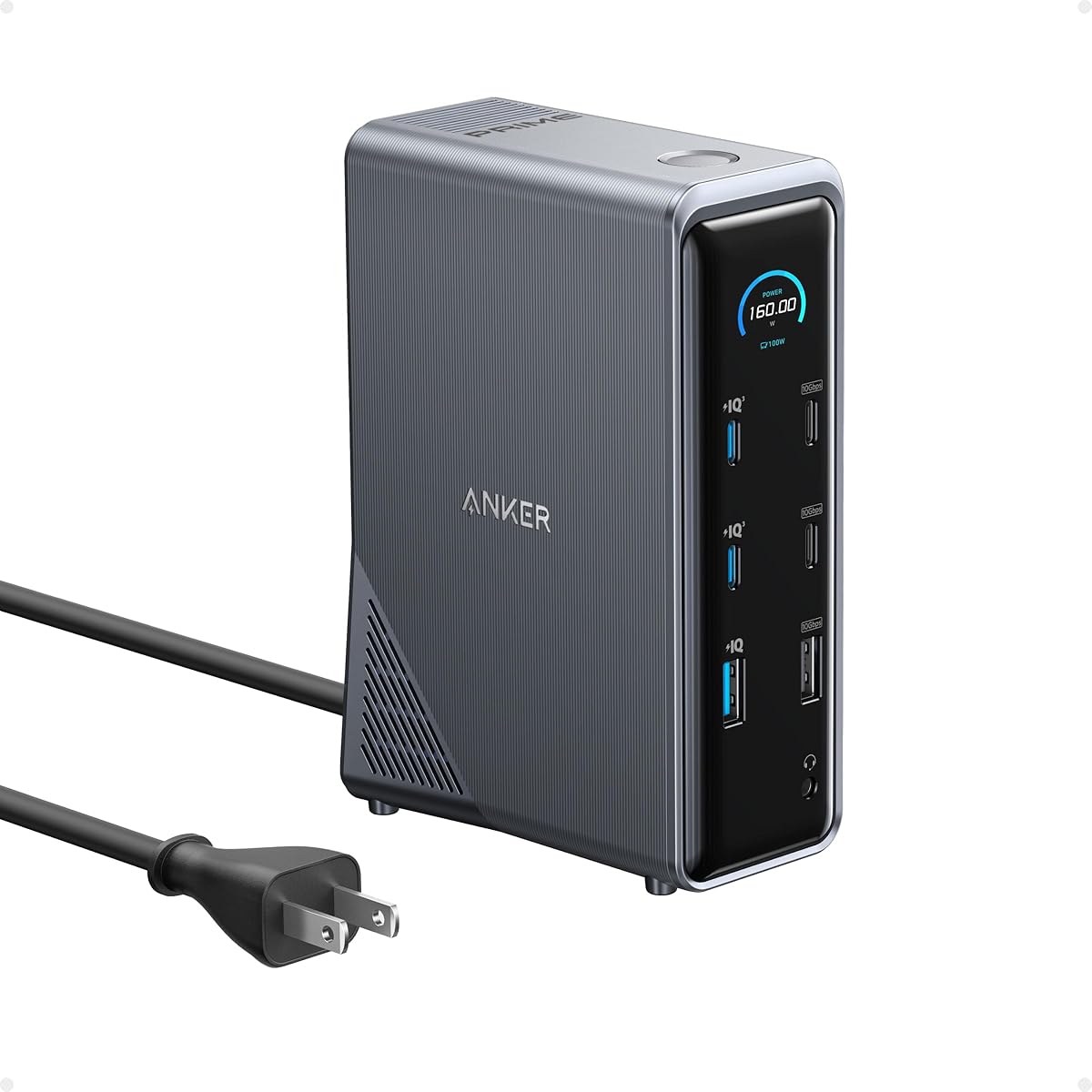
The Anker Prime 14-in-1 is designed for users who see docking as a charging station as much as a display adapter. It has a 4.3 rating and an unusual 160W total charging output, distributed through three USB-C ports capable of 100W each and one USB-A port rated at 12W. It can charge up to four devices simultaneously, making it useful for a laptop, phone, tablet, and accessory ecosystem.
We may earn a commission when you buy through this link, at no additional cost to you.
Its data connectivity is extensive, with 11 data ports and transfer speeds up to 10Gbps. Display support runs through dual HDMI connections, and the supplied information lists two displays up to 2K@60Hz with a DP 1.4 host or 1080p@60Hz with a DP 1.2 host. The product supports USB-C, USB4, and Thunderbolt hosts, as well as Windows 10, Windows 11, and ChromeOS.
The central compromise is the lack of DisplayPort. Despite the product's broad feature set, a buyer seeking a dedicated DisplayPort connection should choose another model. The listed dual-display resolution is also lower than the 4K capabilities of several alternatives, and 5120×1440 is explicitly unsupported. On macOS, both external displays are identical rather than independently extended, and Linux is not compatible.
Anker Prime is best understood as a premium charging hub with dual-screen capability, not as a specialist DisplayPort dock. Its 160W charging architecture is the clear reason to select it for a shared desk containing several power-hungry devices. For users who need DisplayPort, higher monitor resolution, or native macOS multi-screen extension, one of the more display-focused models will be a better fit.
The 160W total output is the model's defining advantage. Three USB-C charging ports and one USB-A charging port can serve several devices at once, reducing dependence on separate desktop chargers.
Eleven data connections and speeds up to 10Gbps support a broad assortment of storage and peripherals. However, the absence of DisplayPort makes this less attractive for display-focused shopping lists.
We may earn a commission when you buy through this link, at no additional cost to you.
The WAVLINK DisplayLink Docking Station is a flexible dual-4K dock for users who want several display connector options. Its video section includes two HDMI and two DisplayPort ports, allowing dual-HDMI, mixed HDMI and DisplayPort, or dual-DisplayPort arrangements. The supplied information lists support for up to two 4K@60Hz monitors on compatible systems, with a 4.2 rating.
We may earn a commission when you buy through this link, at no additional cost to you.
It supports a broad range of modern host connections, including USB-A, USB-C, USB4, Thunderbolt 3, Thunderbolt 4, and Thunderbolt 5. Compatibility extends to Windows 10 and later, macOS 11 and later—including listed Apple Silicon M1 through M5 and Neo systems—and ChromeOS 100 and later. A DisplayLink driver is required for video output, and Linux is not supported.
The dock also includes six USB 3.0 Type-A ports, Gigabit Ethernet, and a 3.5mm audio jack. That is a conventional and capable accessory set for offices using wired keyboards, mice, storage, networking, and headsets. It does not charge the connected laptop, so users must retain a separate power connection. It is also expressly aimed at everyday productivity rather than gaming, high-frame-rate video editing, or protected streaming content.
WAVLINK is a good option for users who have mixed monitor connector preferences and want sharp dual-screen output. Its multiple input interfaces also make it easier to move between USB-C and USB-A systems. The required driver and lack of charging reduce convenience, but for a permanently installed desk where power is already handled, the four display outputs and broad platform coverage provide meaningful flexibility.
Two HDMI and two DisplayPort ports make it simple to match different monitor inventories. The ability to run dual 4K panels at 60Hz is useful for detailed documents, dashboards, and side-by-side applications.
USB-A, USB-C, USB4, and multiple Thunderbolt generations are supported. This makes the dock practical for users who switch among recent and older portable systems.
We may earn a commission when you buy through this link, at no additional cost to you.
The Plugable USB C Docking Station 14-in-1 is the premium selection, particularly for Mac users who need two detailed external displays. It has a 4.3 rating, an aluminum housing, 100W host charging, and DisplayLink technology that can enable dual 4K 60Hz output on listed M1 through M5 and Neo MacBook systems, even where native macOS display support is limited.
We may earn a commission when you buy through this link, at no additional cost to you.
The video outputs can be used as two HDMI connections, two DisplayPort connections, or a combination. Additional features include front-facing USB-C and USB-A charging ports, three more USB 3.0 ports, SD and microSD readers, a 3.5mm headset jack, and Gigabit Ethernet. That combination gives the dock a polished all-in-one feel for professional business, teaching, healthcare documentation, and hybrid-work environments.
The DisplayLink driver is required for full functionality, so setup involves an extra software step. HDCP is not supported, which means protected streaming content should not be expected to work reliably. Compatibility includes macOS 11+, Windows 10+, and ChromeOS 100+ on supported Thunderbolt, USB4, or USB-C systems. The product information also notes that Plugable provides lifetime support from its North American connectivity team.
This is a strong recommendation for users willing to install a driver in exchange for a polished, high-resolution two-monitor setup with charging and extensive connectivity. MacBook owners should pay particular attention to the extended-display capability, while Windows and ChromeOS users benefit from the same dual 4K arrangement. It is more specialized and more premium than a basic adapter, but the hardware and support package justify that positioning for a serious desk.
DisplayLink technology provides a route to two external 4K 60Hz monitors on listed Mac systems with native single-display limits. It is a meaningful advantage for users who work across spreadsheets, communications, research, and media simultaneously.
The space-gray aluminum housing, integrated card readers, Ethernet, audio, USB charging, and 100W host power create a desk-focused package. Lifetime support adds reassurance for buyers investing in a long-term setup.
We may earn a commission when you buy through this link, at no additional cost to you.
The Selore USB C Docking Station Dual DisplayPort offers an unusually broad display configuration in a compact hub. It has a 4.3 rating and includes two DisplayPort outputs, one HDMI connection, and one VGA port. On compatible Windows systems using MST, all four can be used for extended output, while the two DisplayPort connections are listed as supporting 4K@60Hz.
We may earn a commission when you buy through this link, at no additional cost to you.
The dock includes a USB-C PD 3.0 input capable of 100W pass-through charging, allowing a compatible laptop to remain powered while connected to the hub. It also has one USB-C 2.0 port and two USB-A 2.0 ports, each listed at up to 480Mbps. A keyboard, mouse, and basic external storage are natural fits for these connections, although the dock is not aimed at intensive data-transfer workflows.
Compatibility checks are important. The host USB-C port must support DisplayPort Alternate Mode or Thunderbolt 3 or 4, and Windows is required for the advertised four-display MST arrangement. macOS supports mirror mode or a single extended display but does not support MST. A 100W USB-C power adapter is also not included, so users who want pass-through charging need to have a suitable charger available.
This model is a strong budget-oriented choice for Windows users who want as many visual outputs as possible and own a mix of DisplayPort, HDMI, and VGA equipment. It is less suitable for Mac users seeking three or four independent screens, and its 480Mbps USB connections limit advanced storage performance. Even with those boundaries, the combination of two 4K-capable DisplayPort outputs, four-display Windows support, and 100W charging is a compelling feature set.
Windows users with a compatible host can extend across DisplayPort, HDMI, and VGA outputs simultaneously. The mixed connector selection is especially useful for mixed-monitor offices and temporary presentation stations.
A 100W USB-C PD input keeps compatible laptops powered during a long session. The hub is driver-free, although macOS does not offer the same multi-screen MST expansion as Windows.
We may earn a commission when you buy through this link, at no additional cost to you.
The right docking station depends less on the number of ports printed on the box and more on your host computer, display needs, power requirements, operating system, and workflow. Use the following factors to narrow the field before making a final selection.
A docking station with Display Port is only useful if the laptop can send the required video signal through its USB-C connection. Look for a full-featured USB-C port supporting DisplayPort Alternate Mode or a compatible Thunderbolt generation. A basic USB-C data port may support peripherals but not external displays. Native USB-C display support is often simpler and more widely compatible than an adapter based on DisplayLink, but the exact number of extended screens remains controlled by the host operating system and graphics hardware.
In short, check the laptop specifications before choosing the dock. Confirm video output, data transfer, and charging support rather than assuming every USB-C port performs all three functions.
Two DisplayPort outputs may be enough for a focused productivity desk, while three or four screens can support intensive research, trading, media review, or development workflows. Pay attention to the stated resolution and refresh rate for each number of active displays. Some docks support 4K on one screen but only 1080p or 2K when several are active. Also determine whether you need true extended desktop space, mirrored content for presentations, or a combination of both.
Choose a dock whose supported display matrix matches your exact setup. More ports are not automatically better if the added outputs cannot deliver the resolution you need.
A docking station that charges the laptop can reduce desk clutter to a single USB-C connection. Common host charging levels in this category range from 85W to 100W, with some models offering additional charging for phones and tablets. The host charger may be included or sold separately, and some docks provide no host charging at all. Check the power adapter wattage, whether the host requires a proprietary charger, and whether the included cable supports both data and the necessary power profile.
Prioritize adequate host power rather than a headline charging number. A dock that supports several displays but delivers weak or unstable power may be unsuitable for a full workday.
Windows laptops generally provide the broadest support for native multi-monitor MST configurations, although host hardware still matters. macOS users should investigate whether a dock uses native macOS display support or DisplayLink, because extended and mirrored behavior can differ substantially. ChromeOS support is available on several models in this guide, while Linux compatibility is uncommon. DisplayLink-based docks normally require a driver installation, adding setup time but potentially unlocking display support on otherwise limited systems.
Do not assume that a dock listing macOS or Windows is equally capable on both. Read the platform notes carefully, especially the rules for mirrored, extended, and multiple-display modes.
USB port counts are useful but incomplete as a quality measure. Look for USB-C and USB-A ports rated at 10Gbps for fast external storage, and use 5Gbps or 480Mbps connections for keyboards, mice, webcams, and other low-bandwidth accessories. A dock may also need Gigabit Ethernet, a 3.5mm audio jack, and SD or microSD readers. For creative work, confirm whether a card reader can read and write two formats simultaneously. Consider the physical layout as well; easy-access ports are more useful than a crowded array in difficult-to-reach locations.
Match the port mix to your actual accessories instead of buying extra capacity you will never use. Fast data ports, reliable network access, and readable card slots usually deserve more priority than a very high raw port count.
DisplayLink docks use a display adapter and driver to send video across the host connection. This can permit two high-resolution external screens on systems with limited native display output, including several MacBook configurations. The trade-off is additional software setup and possible restrictions on protected content, gaming, or high-frame-rate workflows. The compatible models here explicitly position themselves for productivity, and HDCP-protected streaming is unsupported on several of them.
Use DisplayLink when extending screen count is essential and the host has native limitations. For straightforward Windows setups, native MST or direct USB-C display may offer a simpler experience.
The physical dock matters in daily use. A vertical enclosure may save desk width, while a low horizontal profile can sit behind a monitor. Large, heavy models are often well suited to a permanent workstation, whereas detachable or compact designs are easier to carry. Look for a robust host connector, reasonable cable routing, an included host cable, and a security slot if the equipment will remain in a shared office. Thermal design can also influence sustained performance, particularly with multiple displays and several USB devices.
Choose a form factor that encourages a tidy, reliable setup. A dock should fit the location where it will actually live and should be easy to reconnect without rearranging the desk.
Begin by confirming that the laptop's selected USB-C or USB-A host port supports the functions the dock requires. For a USB-C connection, check for DisplayPort Alternate Mode, Thunderbolt, USB4, Power Delivery, or the relevant DisplayLink data capability. Connect the host cable first, install any required DisplayLink driver, and then attach the power adapter. Once the dock is recognized, connect monitors and other accessories, followed by a brief restart if the operating system does not immediately detect the new displays.
Configure the operating system rather than assuming the arrangement will be automatic. In the display settings, identify each monitor, set the main display, choose extended or mirrored mode, and verify the native resolution and refresh rate. If a screen is blank, try reconnecting the DisplayPort or HDMI cable at both ends, cycling the dock's host connection, and confirming that the monitor's input source matches the selected port. On Windows systems using MST, the host GPU and USB-C port must both support the intended multi-display configuration.
To care for the dock, keep it on a stable, ventilated surface and avoid placing heavy objects on top of it. Route the host cable without creating a sharp bend near the connector, and avoid repeatedly pulling the cable to disconnect accessories. Keep card-reader slots and ventilation openings free of dust, and do not insert damaged cards or cables. When connecting a large desktop setup, use the specified power adapter and host cable, since lower-powered or limited-specification cables can reduce charging or display performance. Periodically update the required driver, particularly when changing laptops or operating-system versions.
No. The laptop's USB-C port must support DisplayPort Alternate Mode, Thunderbolt, or an appropriate DisplayLink connection. A USB-C port designed only for data can still provide some peripherals but may not transmit a display image. Check the laptop manufacturer's specifications for display output and charging support before purchasing a dock.
It depends on the MacBook and the dock's technology. A native DisplayPort dock is limited by the number of external screens macOS and the specific model support. A compatible DisplayLink dock can extend two 4K 60Hz displays on the listed M1 through M5 and Neo systems, but it requires driver installation and does not support HDCP-protected content.
Native USB-C display uses the laptop's graphics system to send video directly through its USB-C port, generally providing straightforward setup and broad operating-system behavior. DisplayLink sends the display through a driver and software adapter, which can overcome native screen-count limits on some computers. DisplayLink may require extra setup and can be unsuitable for protected content, gaming, or high-frame-rate video editing.
Compatibility often depends on the host computer, its graphics capability, the operating system, the selected USB-C port, and the dock's active power state. macOS lacks MST support on several of the listed docks, and some laptops require Display Stream Compression for high-resolution multi-screen output. Ensure the correct adapter and cable are connected, install any required driver, and verify the host's supported display matrix.
Some models do, while others require a separate charger. The Dell Pro WD25, Acer 13-in-1, Anker Nano, and Plugable 14-in-1 provide host charging, with different maximum power levels. The Plugable Dual DisplayPort and WAVLINK DisplayLink docks do not charge the laptop. Always check whether a power adapter and suitable host cable are included.
It is sufficient for many mainstream and professional notebooks, but not necessarily for every workstation. A 100W rating is usually useful for standard productivity and many demanding portable systems, while some larger laptops may require a higher-power proprietary charger. The host must also support USB-C Power Delivery for dock charging to work correctly.
It depends on the dock. Several products in this guide are explicitly optimized for office productivity and do not support HDCP-protected content, gaming, or high-frame-rate editing. Native graphics systems may provide better results for those tasks. For competitive gaming or protected media, verify the dock's specifications and current display limitations before purchasing.
Most users benefit from at least one USB-A port for a keyboard or mouse, a second USB-A port for removable storage, a 3.5mm audio jack, and Gigabit Ethernet for a stable wired connection. Fast 5Gbps or 10Gbps USB-C and USB-A ports are worth considering for external SSDs, while SD and microSD readers help photographers and video creators.
The Dell Pro WD25 is the strongest overall recommendation for buyers who need a balanced commercial dock with up to four high-resolution displays, 100W host charging, and IT-oriented manageability. The MOKiN 8-in-1 is a more affordable dual-DisplayPort option, while the Plugable 14-in-1 stands out as the premium choice for compatible Mac users who want two 4K screens, host charging, and a polished aluminum workstation.
Prioritize your actual display matrix before considering every port. Confirm the host's USB-C capabilities, operating system, number of independent screens, and required video resolution. Add charging needs to the decision, followed by data speed, Ethernet, audio, and card-reader requirements. Native-display docks usually offer simpler operation, while DisplayLink models can provide valuable screen expansion where native hardware limits exist.
Finally, check the current listing and price before buying. Display support, bundled accessories, firmware, drivers, and host compatibility can evolve, and prices change over time. The Amazon links below open the relevant product pages so readers can review the latest configuration and current terms.
