
Arteck Split Ergonomic Keyboard
4.3Editor score
Split wireless layout
Cushioned palm and wrist support
Simple USB receiver setup
Long coding sessions can leave wrists, forearms, shoulders, and neck feeling unnecessarily strained. Ergonomic keyboards for programmers address those concerns through split frames, curved key wells, palm support, adjustable tilt, and layouts designed to keep the hands in a more natural position.
We compared ten established options based on the features supplied by each manufacturer, including key layout, separation and tenting options, switch feel, device connectivity, programmability, battery life, and desk-space requirements. The guide covers wireless, wired, budget, business, and highly programmable models.
Each review explains who the keyboard suits, what makes it useful at a programming workstation, and where compromises may arise. Ratings reflect the supplied customer feedback, while availability, features, and prices can change, so readers should verify current listings before purchasing.
4.3Editor score

4.4Editor score

4.1Editor score
As an Amazon Associate we earn from qualifying purchases.
The comparison below highlights the major differences in layout, adjustability, connectivity, and everyday suitability, helping programmers find a keyboard that matches their typing habits and workstation.




The Logitech ERGO K860 combines a recognizable full-size layout with the curved, split design that makes it one of the most approachable ergonomic choices for programmers. Its supplied rating is 4.4, and the strongest reasons to consider it are the sloping keyframe, pillowed wrist rest, scooped keys, and adjustable palm lift. Unlike many specialist split keyboards, it retains a conventional full-size arrangement and familiar key placement.
We may earn a commission when you buy through this link, at no additional cost to you.
The sloping frame is intended to reduce strain on the wrists and forearms, while the curved wrist rest includes a memory foam layer. The supplied feature list states that it offers 54 percent more wrist support and 25 percent less wrist bending than a standard keyboard without a palm rest. Scooped keys are shaped to meet the fingertips, and three tilt positions—zero, negative four, and negative seven degrees—let users adapt the board to seated or standing work.
Connectivity is versatile for a multi-device programming setup. The keyboard can use a USB receiver or Bluetooth, and Logitech Options enables Fn-key customization, shortcuts, and battery notifications. Quiet keys, a full-size layout, and a visible Caps Lock indicator are practical details for long work sessions. There are also sustainability considerations, including post-consumer recycled plastic in Graphite components and FSC-certified packaging.
The main compromise is that the separation between the two halves is fixed. Programmers who want to move each hand independently, add substantial tenting, or completely redesign their layout should look toward the KINESIS models. The K860 also requires Logitech Options for deeper customization. Even so, it offers an unusually balanced combination of comfort, familiar operation, and everyday connectivity, making it the strongest general recommendation in this guide.
The sloping split frame and integrated rest make the K860 approachable for programmers who want to reduce wrist extension without leaving a familiar layout. Its rounded key wells and adjustable palm lift offer several ways to tune the feel once the keyboard is positioned on the desk.
Bluetooth and receiver connectivity make it convenient to move between a desktop workstation and a laptop. Custom shortcuts through Logitech Options add value for frequently repeated commands, while the full-size layout preserves a dedicated numeric keypad.
We may earn a commission when you buy through this link, at no additional cost to you.
The KINESIS Freestyle2 is built for programmers who want more control over the relationship between their hands, wrists, and forearms. Its supplied rating is 4.3. Unlike a fixed split keyboard, the Freestyle2 lets users rotate and separate the key modules by as much as nine inches, making it easier to accommodate different shoulder widths and preferred shoulder positions.
We may earn a commission when you buy through this link, at no additional cost to you.
The included VIP3 lifters add another layer of personalization by supporting five, ten, or fifteen degrees of tenting. Integrated cushioned palm supports help keep the forearms neutral, while the detachable pivot tether allows the two modules to be adjusted independently. These features make the Freestyle2 more adaptable than many conventional ergonomic boards.
For daily productivity, the standard Windows layout includes familiar cut, copy, and paste hotkeys, multimedia keys, and an embedded numeric keypad. The keyboard operates without special software or drivers, which is valuable in managed corporate environments or on systems where configuration access is limited. Its custom membrane switches use low activation force and provide tactile feedback intended to reduce finger fatigue and impact.
The trade-offs are practical. It uses a wired USB-A connection, so it cannot easily move between several wireless devices, and its raised, separated design takes more time to learn than a conventional laptop-style layout. It also has a smaller dedicated number pad than a standard full-size keyboard. For programmers who value precise positioning above wireless convenience, however, the adjustment offered here makes the Freestyle2 a compelling ergonomic tool.
Nine-inch separation, module rotation, and three tenting choices let users shape the board around their anatomy rather than accepting one fixed posture. This flexibility is particularly valuable when a standard split still leaves the shoulders tense or the wrists angled outward.
The Freestyle2 works as a conventional Windows device without special drivers. Programmers keep common editing commands, multimedia controls, and an embedded numeric keypad without first building a custom configuration.
We may earn a commission when you buy through this link, at no additional cost to you.
The Logitech Wave Keys is a less radical ergonomic option than a fully split board, but it may appeal to programmers who want a smaller, wireless keyboard without the pronounced learning curve associated with specialist layouts. It carries a supplied rating of 4.2. Its defining feature is the low-profile wave shape, which is designed to place the hands, wrists, and forearms in a more natural position while retaining familiar key groups.
We may earn a commission when you buy through this link, at no additional cost to you.
The cushioned palm rest contains memory foam, giving the hands somewhere to settle between bursts of typing. Logitech describes the keyboard as designed and tested against criteria established by leading ergonomists and approved by United States Ergonomics. It is also compatible with the Lift Vertical Ergonomic Mouse, although that mouse is not part of this listing.
Wireless functionality is one of its strongest features. Bluetooth or the Logi Bolt receiver allows the board to work across a laptop, tablet, or phone running Windows, macOS, iPadOS, or ChromeOS. Easy-Switch controls make it convenient to move among up to three devices, and the stated battery life is up to three years. The Logi Options+ app supports personalized shortcuts.
Compared with the K860, the Wave Keys offers less pronounced separation and no multi-angle palm lift. It therefore may not provide the same level of correction for users who strongly prefer independent hand positioning. Its compactness also requires some desk-space planning, although it is still less expansive than a full split board. It is best suited to programmers seeking a wireless everyday keyboard with moderate ergonomic shaping and streamlined device switching.
The wave profile changes the angle and height of the typing surface while preserving much of a familiar layout. This makes it a practical transition option for programmers who find aggressive split designs uncomfortable at first.
Easy-Switch lets a programmer move between a desktop, laptop, and tablet with minimal interruption. Shortcut personalization through Logi Options+ adds convenience for common development actions.
We may earn a commission when you buy through this link, at no additional cost to you.
The Arteck Split Ergonomic Keyboard provides a straightforward introduction to split typing and carries a supplied rating of 4.3. It focuses on the essentials: a divided frame, a soft cushioned wrist and palm rest, and wireless operation through a 2.4 GHz USB receiver. There are no elaborate tenting controls or remapping tools, but the design can make a meaningful difference for programmers accustomed to flat rectangular boards.
We may earn a commission when you buy through this link, at no additional cost to you.
The split frame positions the two key groups separately, helping the wrists and forearms settle into a more relaxed, natural alignment. Its padded support creates a resting area during pauses and less demanding portions of the workday. The physical design is simple, which can be helpful for programmers who want the basic ergonomic concept without spending time configuring tenting, splay, or alternate key positions.
Setup is straightforward. The nano USB receiver is stored at the back of the keyboard and can be inserted into a computer for immediate use. A rechargeable lithium battery is stated to last up to six months when used for two hours per day, and the package includes a USB-C charging cable, welcome guide, and a 24-month warranty.
The compromises are clear: the receiver setup is aimed at one computer at a time, and the keyboard offers limited evidence of adjustable separation or tenting. It also lacks the broader connectivity and custom shortcut functions found in several Logitech options. Even so, Arteck offers a useful balance for programmers who want a padded split keyboard, uncomplicated setup, and strong stated battery endurance without committing to a specialist layout.
The split layout offers many of the structural benefits associated with separated keyboards while avoiding a complex configuration process. It is an approachable option for programmers testing ergonomic typing for the first time.
The included nano receiver makes the keyboard immediately usable with a compatible computer. Its stated six-month battery life is based on two hours of daily use, making it a low-maintenance option for regular coding sessions.
We may earn a commission when you buy through this link, at no additional cost to you.
The ProtoArc EK01 Plus combines a curved split frame, full-size layout, adjustable backlighting, and multi-device wireless connectivity. Its supplied rating is 4.3. The design aims to reduce strain on the wrists and forearms while also improving the ergonomics of working in dim rooms or at night, making the lighting controls a particularly useful programming feature.
We may earn a commission when you buy through this link, at no additional cost to you.
The keyboard offers soft white LED backlighting at low, medium, and high levels, plus an off setting. The supplied battery estimates vary significantly with illumination: up to 12 to 13 hours in high mode, 18 to 20 hours in medium, 34 to 36 hours in low, and an extended 90 to 100 days with the backlight off. A 2000mAh rechargeable battery provides the stated capacity.
Bluetooth and 2.4 GHz USB connectivity allow pairing with up to three devices, and a dedicated key switches among them. Compatibility includes Windows 8 and 10 or later, Mac OS X 10.12 or later, and Android 4.3 or later. The keyboard cannot be connected by wire, so users who value uninterrupted operation during battery depletion should account for that limitation.
Four adjustable tilt feet provide three stated angles, while the curved wrist rest is described as offering 54 percent more support. The main concern is footprint: this is a full-size ergonomic keyboard and may occupy more desk space than a compact model. It also lacks evidence of extensive programmability. Even with those caveats, the EK01 Plus is a strong option for programmers who need backlighting, flexible wireless switching, and a roomy split-frame layout in one device.
Three brightness levels make the backlight adaptable to different ambient conditions. Turning it off can conserve battery life significantly, while the low and medium settings provide illumination without the strongest energy draw.
Bluetooth and 2.4 GHz wireless connectivity support switching among a laptop, tablet, and computer. This is useful for programmers who move between local testing, remote administration, and a secondary screen.
We may earn a commission when you buy through this link, at no additional cost to you.
The Logitech ERGO K860 Business is aimed at organizations that want an ergonomic keyboard with stronger device-management and wireless-security considerations. Its supplied rating is 4.1. The central difference from the standard K860 is the emphasis on Logi Bolt, encrypted Secure Connections Only mode, remote deployment, firmware management, and Logitech Options support for business users.
We may earn a commission when you buy through this link, at no additional cost to you.
Comfort comes from the same general design philosophy as the standard model: a sloping, curved split keyframe, a pillowed wrist rest, and three tilt-leg positions. The intention is to support natural wrist and forearm positioning while lowering muscle strain during extended work. The full-size numeric keypad remains available for programmers who regularly enter numeric data.
The keyboard can connect to up to three devices and has a stated two-year battery life. Its enterprise-oriented security features are particularly relevant in corporate development environments, where unmanaged wireless peripherals may create policy concerns. The supplied information also notes certification in more than 100 countries and support for mass deployment and device firmware updates.
The key limitation is that the separation between the halves is fixed, so users wanting extensive tenting or independent positioning should consider the KINESIS Freestyle2 or Advantage360. Centralized management may also be unnecessary for an individual home developer. For organizations that need a recognized ergonomic keyboard alongside secure wireless deployment, however, this business-focused model addresses both requirements clearly.
Secure Connections Only mode provides encrypted wireless communication, while Logi Bolt forms the foundation for business deployment. These features make the keyboard easier to align with centralized IT policies.
A dedicated numeric keypad, three-device connectivity, and a two-year stated battery life preserve common productivity features. The split frame and three-position palm lift add ergonomic options without requiring a specialist keyboard layout.
We may earn a commission when you buy through this link, at no additional cost to you.
The KINESIS Advantage360 Professional is the most specialized and programmable keyboard in this guide, with a supplied rating of 4.1. It is built for programmers who want to reshape the layout around their own shortcuts, key assignments, and preferred workflow rather than simply adding palm support to a standard keyboard.
We may earn a commission when you buy through this link, at no additional cost to you.
Its contoured design includes split key wells, concave surfaces, thumb keys, an orthogonal layout, integrated tenting, and palm supports. Separation can extend to ten inches using the included cable, while three tenting heights help fit different body types. This is a substantial degree of physical adjustment compared with fixed-frame ergonomic boards.
The professional model adds Bluetooth operation, optional white backlighting, and a fully programmable open-source approach. Users can reconfigure the base layout through GitHub or a web-based graphical interface. Quiet Kailh Box Pink Silent stem switches have a low activation force, linear feel, and stated durability of 50 million presses. Compatibility covers Windows 7 through 11, macOS, Linux, and Chrome.
The complexity is meaningful. New users face a steep learning curve, and premium palm pads are sold separately despite palm supports being included in the general design. The package includes two braided USB-C-to-USB-A charging cables, extra keycaps, a keycap puller, a bridge connector, and a quick-start guide. For power users willing to invest time in configuration, it offers the deepest personalization in this roundup.
Programmable keys can be tailored to frequently used symbols, editing commands, or application-specific actions. For programmers who rely on a terminal, editor, or IDE, this can reduce repeated reach and keystroke combinations.
The Kailh silent stem switches provide a low-force, linear mechanical feel designed to limit noise. Their stated 50-million-press durability also supports regular, extended use, although comfort still depends on the user's preferred switch characteristics.
We may earn a commission when you buy through this link, at no additional cost to you.
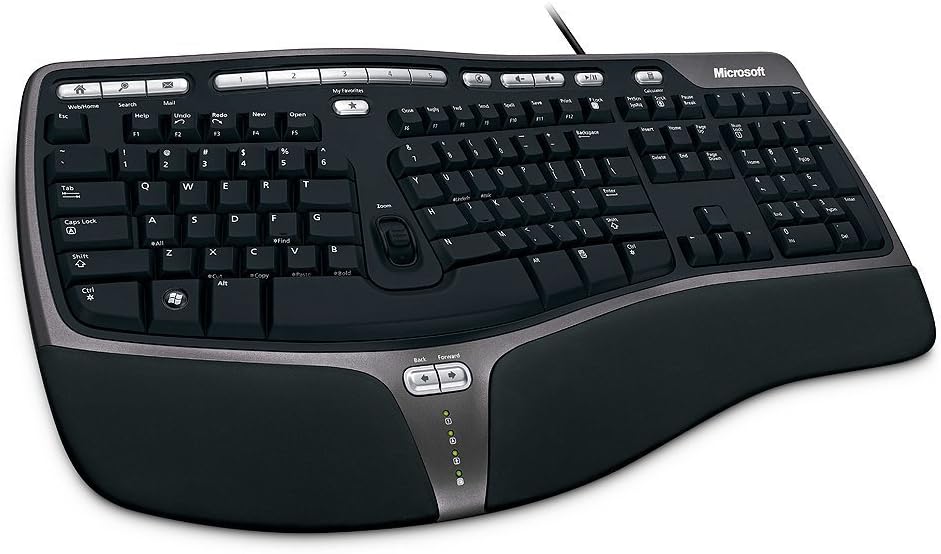
The Microsoft Wired Natural Ergonomic Keyboard 4000 offers a familiar route into split typing, and its supplied rating of 4.4 reflects the enduring appeal of its design. Rather than using a steeply sculpted or fully customizable layout, it curves a conventional full-size keyboard and adds a substantial palm rest. This makes it potentially approachable for programmers accustomed to standard Windows keyboards.
We may earn a commission when you buy through this link, at no additional cost to you.
The split design is intended to encourage natural hand, wrist, and forearm positions. A cushioned palm rest supports the hands during pauses, while the palm lift changes the angle of the keyboard to promote a more relaxed wrist posture. Media keys provide direct control over music and video, which can be convenient during focused development sessions or screen recordings.
The wired connection is dependable and removes both battery charging and wireless pairing from the equation. For a fixed workstation, that simplicity remains valuable. It also preserves the full-size layout and numeric keypad, avoiding the compromises that sometimes come with compact ergonomic models.
The trade-offs reflect its older design brief. It lacks Bluetooth, multi-device switching, modern backlighting, extensive programmability, and independently adjustable tenting. It also has no stated mechanism for changing the separation between key groups. The Microsoft Natural 4000 is therefore most appropriate for programmers who value familiar Windows conventions, a generous palm rest, and a stable wired connection rather than advanced configuration.
The curved arrangement delivers the basic visual and physical benefits of split typing while remaining visually and functionally familiar. It can be an easier transition than a steep tented board for programmers who work in fast editing sessions.
The integrated palm rest and palm lift create a supportive station that does not require charging or pairing. Its full-size layout keeps the numeric keypad close at hand for data entry and command-line work.
We may earn a commission when you buy through this link, at no additional cost to you.
The Microsoft Natural Keyboard Elite is a classic ergonomic option with a supplied rating of 4.3. Its design focuses on comfort and everyday convenience rather than the pronounced split geometry, deep programmability, or wireless flexibility found in newer specialist keyboards. The result is a relatively simple choice for programmers who prefer a conventional-looking desktop peripheral.
We may earn a commission when you buy through this link, at no additional cost to you.
The curved ergonomic form is the central feature. It provides a more relaxed typing position without the visual and tactile discontinuity of a sharply separated board. Multimedia controls make it easy to manage music and video, while the enhanced F-key commands can be customized for shortcuts. For programming workflows, those F-key controls may reduce reliance on dedicated application shortcuts.
Connection is handled through USB or PS/2, giving the keyboard broad compatibility with desktop computers and many older or deployed systems. This can be especially useful in an enterprise lab, repair environment, or legacy workstation where modern wireless support is inconsistent.
Its limitations are equally clear. It is wired, does not offer multi-device switching, and lacks evidence of extensive remapping or layout customization. The white finish may also stand out more in a dark office than a graphite model. For programmers who want a dependable, classic ergonomic design with media controls and enhanced function keys, it remains a practical option, though newer split boards usually provide stronger posture correction.
The curved profile offers a gentler ergonomic change than a deeply split board. It suits programmers who want support during long sessions but are not prepared to adopt a completely unfamiliar key arrangement.
USB and PS/2 connections make the Natural Elite useful with a broad range of desktop configurations. It is especially relevant where dependable wired input is preferred over wireless pairing.
We may earn a commission when you buy through this link, at no additional cost to you.
The Microsoft 5QH-00001 Natural Ergonomic Keyboard 4000 for Business is a well-established wired split keyboard with a supplied rating of 4.4. It shares the broad comfort benefits of the Microsoft Natural 4000 while adding business-oriented details, including revised number-pad functions and Taskbar Favorites for Windows 7. It is a solid option for managed offices and established desktop setups.
We may earn a commission when you buy through this link, at no additional cost to you.
The split design encourages more natural hand, wrist, and forearm positions, while the plush integrated palm rest provides support when the hands are not actively typing. A palm lift changes the keyboard angle to create a more relaxed wrist position. These are simple ergonomic measures that can make a conventional workday feel less taxing without imposing a steep learning curve.
The improved number pad places common functions such as equals, parentheses, and Backspace above the numeric keypad. That arrangement can reduce awkward reaches during data entry. Taskbar Favorites also adds direct access to selected Windows programs, a useful feature in a business environment where developers may repeatedly switch among internal tools.
The primary limitations are age-related. It is wired and does not offer wireless device switching or modern backlighting. Users of Mac OS X 10.2.x must install the enclosed IntelliType Pro and IntelliPoint software before connecting. As with the retail Natural 4000, there is no extensive open programmability or adjustable separation. For organizations seeking a proven ergonomic layout with clear productivity shortcuts, it remains a dependable choice.
Moving common numeric functions above the keypad reduces the need to stretch downward for frequently used symbols. This is a subtle productivity improvement that can be useful in database work and spreadsheet-heavy roles.
The integrated cushioned rest, palm lift, and full-size layout create a comfortable and familiar station. Taskbar Favorites further streamline access to frequently used applications in a Windows workflow.
We may earn a commission when you buy through this link, at no additional cost to you.
The right ergonomic keyboard depends on your body, workstation, operating habits, and tolerance for unfamiliar layouts. These are the most important factors to evaluate before making a selection.
Split designs separate the left and right key groups to reduce outward wrist bending and encourage the forearms to approach the body more naturally. A mildly curved model may provide enough correction for someone beginning a transition, while a fully split board can provide a more substantial change. Check the physical separation and compare it with your shoulder width; a wider board is not automatically more comfortable if it forces the arms outward or consumes too much desk space.
Summary: pick the least aggressive split you can comfortably use, and verify its dimensions before ordering.
Tenting raises the keyboard's center to bring the wrists into a more neutral position, while splay rotates the two halves outward. These controls can reduce forearm strain, but they also change finger angles and may initially feel strange. Fixed models provide a preset shape, whereas adjustable models let you rotate or reposition each half. Programmers should favor enough control to reach a relaxed position, not simply the greatest number of adjustments.
Summary: prioritize comfortable reach and neutral forearms over maximum adjustment complexity.
A palm rest can reduce the effort of holding the hands above the desk, but the wrist itself should not be pressed sharply upward or sideways. Look for a broad, comfortably cushioned surface that supports the heels of the hands while allowing the fingers to move freely. Memory foam and firm molded surfaces feel different, so desk-chair and desktop hardness can affect the result. A detachable pad may also be easier to position or replace.
Summary: choose supportive padding that keeps hands relaxed without creating pressure points.
Programmers often alternate among code editors, integrated terminals, browsers, and communication tools. A full-size layout with a numeric keypad suits data entry, while a compact layout can create more desk space for multiple monitors. Low-force keys may reduce finger fatigue, while tactile feedback helps confirm commands without looking away from the code. Remappable keys and thumb clusters can accelerate repeated actions, but they require time to configure correctly.
Summary: prioritize the layout and feedback you will use every day over rarely used extras.
Wired keyboards provide consistent power and simple operation, which can be useful in corporate or shared environments. Wireless models support cleaner desks and easier movement between devices, but connectivity standards and pairing processes vary. Look for Bluetooth, a dedicated USB receiver, or both, along with support for the operating systems and devices you actually use. Enterprise buyers should also investigate encrypted connection modes and centralized firmware management.
Summary: choose reliable connectivity and appropriate security, not simply the newest wireless format.
Programmability can move frequently used commands into easier positions or combine multiple actions into one shortcut. Some keyboards offer a visual configuration application, while specialist models support open-source editing and community-developed layouts. This flexibility is powerful but not automatically valuable: a complex interface can consume time before productivity improves. Ensure the software supports your operating system and that the keyboard has an intuitive fallback when customization is unavailable.
Summary: use remapping when it solves a recurring problem, and avoid paying for complexity you will not configure.
An ergonomic keyboard should feel stable while your hands move across it. Inspect the tilt mechanism, frame flex, palm-rest attachment, and connector or charging arrangement. Mechanical switches can provide distinct feedback and long-term durability, while membrane designs may feel lighter and require less force. For wireless models, note stated battery durations under realistic lighting and usage conditions, and check whether replacement cables or receivers are supported.
Summary: favor a stable frame, comfortable force, and maintenance details that match your usage.
Ergonomic shapes often occupy more width than standard keyboards because the halves curve, separate, or tent. Measure the usable area between your monitor and desk edge, allowing room for mouse movement and forearm support. A large board can work well with one monitor or a compact laptop setup, while two or three displays may require a more compact model. Account for cable management if using a wired keyboard or a receiver placed near the monitor.
Summary: measure both keyboard width and free wrist space before choosing a split model.
Begin by positioning the keyboard before optimizing software. Center the keyboard with your body and monitor, place it far enough away to keep your elbows near a relaxed angle, and avoid forcing the wrists upward against the desk. For a split model, adjust the separation, splay, and tenting gradually over several days. Allow your hands to rest on the palm support during pauses rather than pressing the wrists against a hard edge.
Set the palm lift and typing angle to match your posture. Seated users often benefit from a flatter or slightly negative position, while standing users may prefer a different elevation. Begin with the keyboard's recommended settings, use short editing sessions to test them, and change only one variable at a time. For programmable keyboards, save separate layouts for different applications and retain a conventional fallback until the new configuration becomes automatic.
Wireless models should be kept away from moisture, dust, and unnecessary receiver movement. Charge according to the manufacturer's guidance and replace batteries on a consistent schedule if the model uses removable cells. Clean keycaps and palm rests with a soft, lightly dampened cloth, avoiding harsh liquids and excessive moisture. Wired models need occasional inspection of their cables, while adjustable models should not be forced beyond their intended separation or tenting range.
They can be, especially for people who experience wrist extension or outward forearm rotation on a flat keyboard. A split layout can encourage a more neutral hand position, but comfort depends on separation, tenting, key shape, and personal preference. Programmers should test a model gradually and avoid expecting immediate adaptation.
Not necessarily. Shortcuts in your editor or operating system can provide most of the benefit without specialized hardware. A programmable keyboard is more valuable when you want dedicated keys, a thumb cluster, or a layout that reduces repeated reaches. The added complexity is worthwhile only if you will configure and maintain it.
It depends on your work. A number pad is useful for spreadsheet data, database administration, and some numeric development tasks. Compact boards free desk space for large monitors and mouse movement. Check whether your daily coding work actually uses numeric input before prioritizing a full-size arrangement.
There is no universally better switch. Low-force mechanical options can reduce finger effort, while tactile or silent stems provide feedback with less noise. Membrane keyboards may feel lighter and require less travel. Personal preference and adjustment to the new layout matter more than the switch label alone.
Many users need several days to a few weeks to become comfortable, and some continue refining their settings for longer. Start with moderate separation and tenting, use the keyboard for short blocks at first, and avoid abruptly returning to long sessions on a flat board. Consistent, gradual practice generally produces better adaptation.
Wireless models with Bluetooth or multi-device receiver support can move between a laptop, tablet, and desktop. Wired models usually require reconnecting the cable or changing the computer's USB input source. Check the listed device limits and supported operating systems before purchasing for a multi-machine setup.
No. Tenting can help keep the forearms and wrists neutral, but the right amount depends on your anatomy and desk setup. Some users benefit from a modest angle, while others find even a slight tent uncomfortable. A fixed model can still work well if its preset shape feels natural.
No keyboard can guarantee the prevention of pain or injury. A supportive layout may reduce awkward loading, but workstation height, chair setup, breaks, stretching, and individual medical needs also matter. Persistent pain or numbness should be discussed with an appropriate healthcare professional rather than treated solely as a keyboard problem.
The Logitech ERGO K860 is the strongest all-around recommendation for programmers who want meaningful ergonomic shaping, a familiar full-size layout, and convenient wireless operation. The Arteck Split Ergonomic Keyboard is a sensible budget-oriented entry point, while the KINESIS Advantage360 Professional leads for users willing to invest in extensive programmability and physical customization.
Your priority should be the fit of the keyboard to your body and workflow. Consider separation, tenting, palm support, key force, layout, connectivity, and desk space before focusing on secondary features. A simpler keyboard used consistently is likely to be more valuable than a highly advanced model whose best features remain unused.
Before ordering, verify the current dimensions, included accessories, operating-system compatibility, and latest listing details. Product designs, software, availability, and prices can change, so checking the live product page helps ensure that the selected keyboard still fits your requirements at the time of purchase.
